

All embed options live on the Embed page: open Share, go to the Embed tab, and click Customize embed. Full screen sits under Behavior, and the size, background, and scrollbar settings sit under Size and look, next to a live preview of your form. Every option is baked into the code you copy: change something, click Copy code again at the top of the page, and replace the code on your page. New to embedding? Start with How to Embed Your Form on a Website.
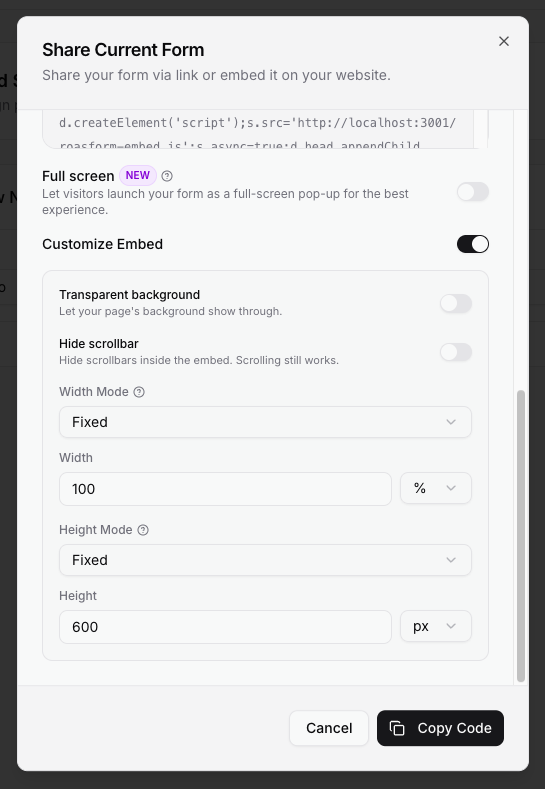
Full screen
With Full screen on, the form first appears inline at whatever size you set. The moment a visitor taps or clicks anywhere on it, it expands to fill the whole screen, with an X in the corner to exit. Closing puts the form back in its place on the page and restores the scroll position. It works on desktop and mobile alike, and it is most useful on phones, where a 600 px box feels cramped. While the form is full screen, the page behind it cannot scroll.
Tip: since the form expands on its own, you can keep the inline size modest and let Full screen do the rest.
Transparent background
Off (default): the form's own background color fills the embed box. On: your page's background shows through, so the form sits on a gradient, image, or brand color without a visible rectangle around it.
For the card-style form skins (Calendar Skin, Chat Bot Skin, SmartSkin) this is always on and locked, shown as "Always on for this form style." Those skins float on the page by design.
Hide scrollbar
Hides every scrollbar inside the embedded form. Scrolling with the wheel, trackpad, or finger still works. Use it with a fixed height when an inner scrollbar looks out of place in your design.
Width
Fixed (default, 100%): the embed takes an exact width, in % or px. 100% means "as wide as the element you pasted it into", which is what you want most of the time. Calendar Skin, SmartSkin and Chat Bot Skin forms default to Fit to form.
Fit to form: the embed shrinks to the form's own content width. Handy for the card skins, so the card is not stretched. You can add an optional Minimum Width and Max Width.
Height
Fixed (default, 600 px): the box keeps an exact height. If a step is taller than that, the visitor scrolls inside the box. Minimum is 100 px. Calendar Skin, SmartSkin and Chat Bot Skin forms default to Fit to form.
Fit to form: the box grows and shrinks to match the current step as the visitor moves through the form, so there is no inner scrolling and no empty space. Set a Minimum Height if you want to avoid the page jumping on short steps, and a Max Height if you need a cap (beyond it, the visitor scrolls inside the box).
Rule of thumb: Fit to form height for multi-step forms and long questions; Fixed when your page layout needs a stable block.
Settings are in the code, not on the form
Leaving the Embed page resets these options to the defaults. Nothing is saved on the form itself; whatever you copied is what your page runs. To change a live embed, set the options again, copy, and replace the code on your page. If you only change the form (questions, design, endings), you do not need to touch the embed at all. Something not behaving as expected? See Embed Troubleshooting.