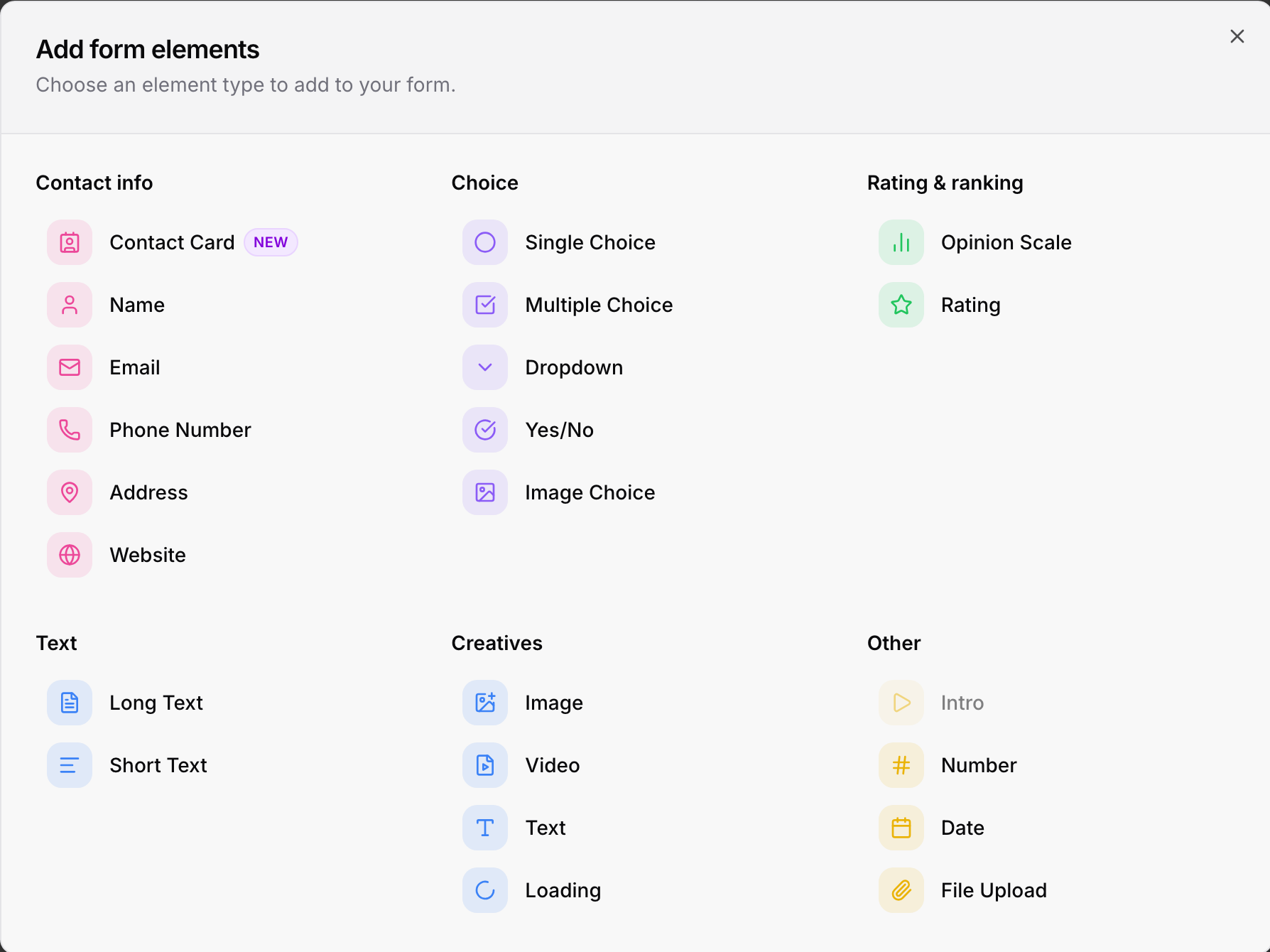
A ROASForm is a sequence of steps. Most steps ask a question; some just show content. This article walks through every element in the Add content picker, what it captures, and what you can set on it.
In the builder, click Add content at the top left. The Add form elements window groups everything into Contact info, Choice, Rating & ranking, Text, Creatives, and Other. Click an element and it is added to the end of your form; drag it in the left list to reorder.
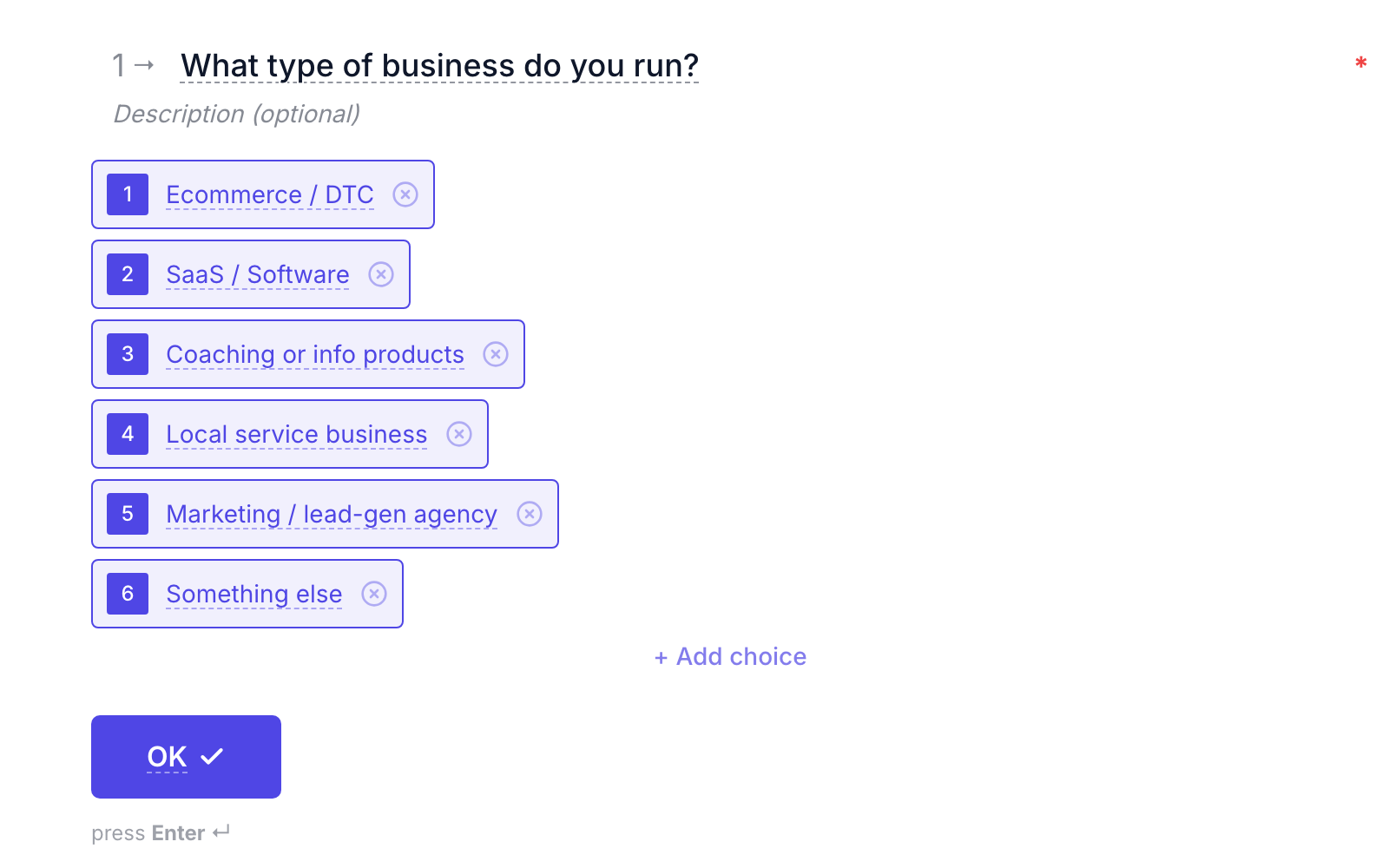
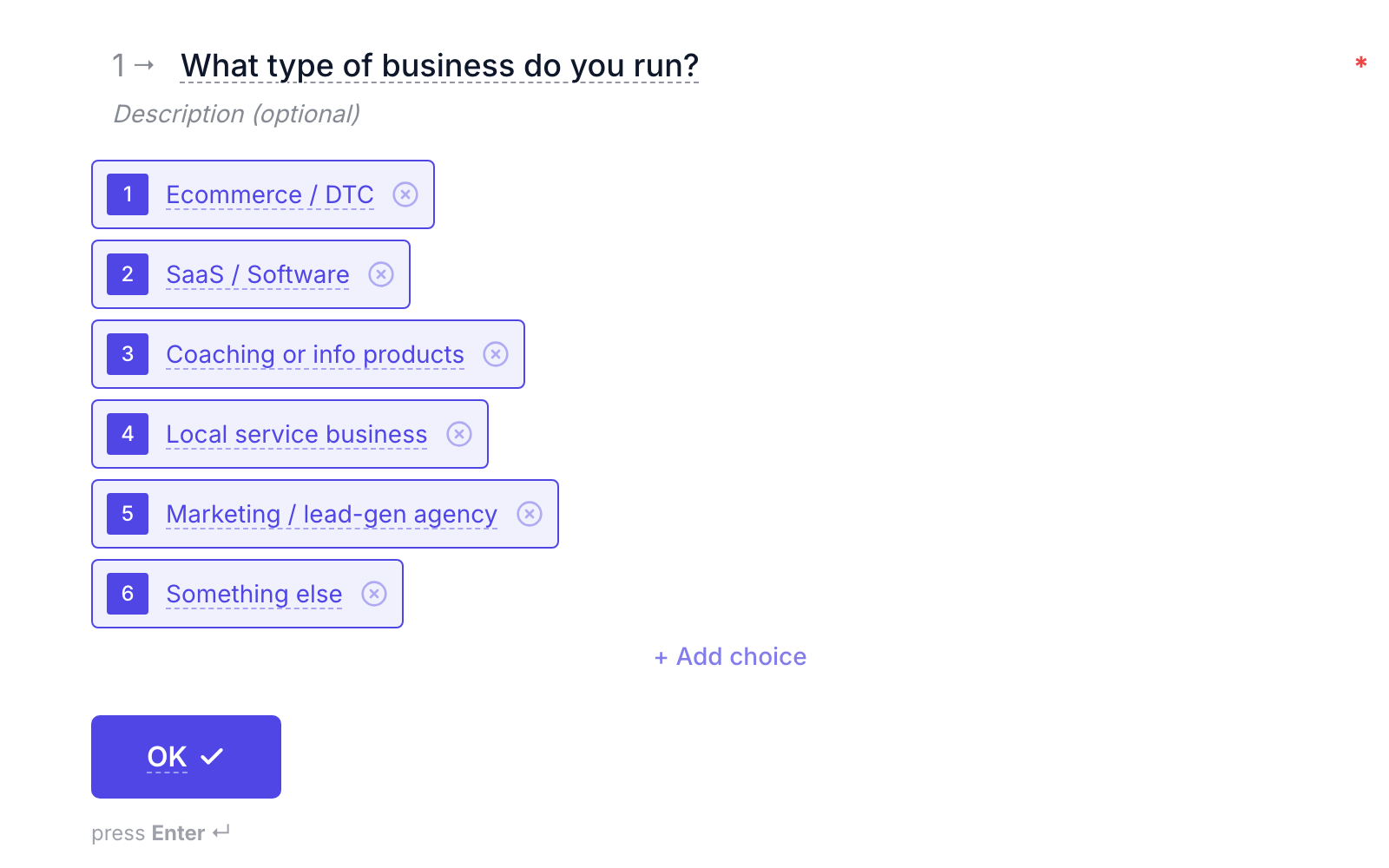
Click a question to edit it. Its title and description are edited right on the canvas; its settings appear in the panel on the right:
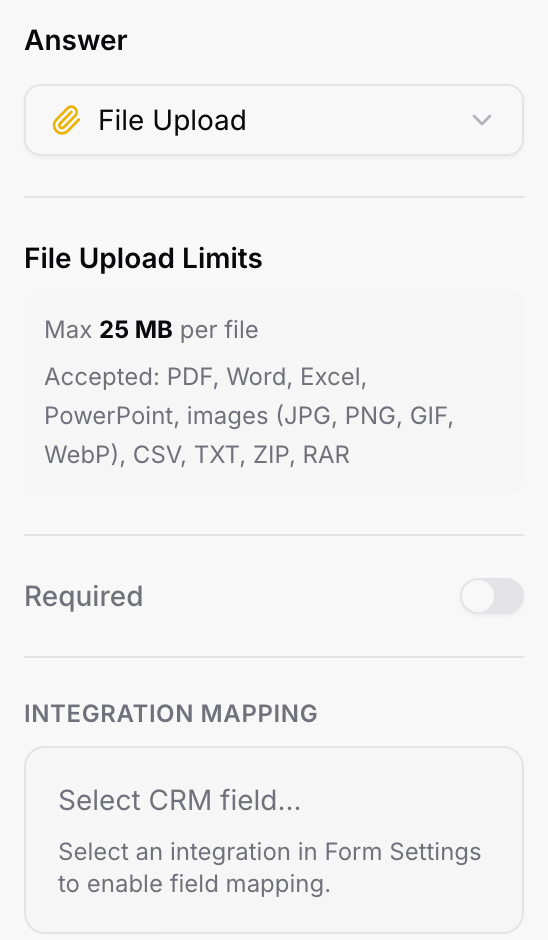
Answer: the question's type. You can switch it here, for example from Single Choice to Dropdown, without rebuilding the question.
Required: the visitor cannot continue without answering. A red asterisk shows on the canvas.
Type-specific options: list style for choices, autosuggest for addresses, opt-in consent for email, and so on (details below).
Integration Mapping: which CRM field the answer is written to. Available once the form has an integration selected in Form Settings; see Mapping Form Answers to GoHighLevel Custom Fields.
These build the lead record. Name, email, and phone are what ROASForm uses to create the lead and the CRM contact, so every form should ask for at least an email or a phone number.
Contact Card: name, email, and phone on a single step instead of three. Under the hood they are three real questions, so mapping, logic, and lead capture behave exactly as with the separate elements.
Name: the lead's name. Becomes the contact's name in your CRM; use one Name question, or two labeled First and Last if you want the split under your control.
Email: validated as a real address. Has an Opt-in consent switch that adds a consent checkbox under the field.
Phone Number: country picker plus number, validated as the visitor types and stored in international format, which is what your CRM expects.
Address: free-text address with an optional Autosuggest switch ("Real address suggestions will appear as the user types"). With a CRM connected you can map the whole address or its parts (street, city, state, postal code, country) separately.
Website: a URL field.
Choice questions are the backbone of qualification: they drive logic rules and scoring, and their answers are the easiest to report on. Options are edited on the canvas; click + Add choice to add one and the x to remove it. The List style setting controls the markers shown next to options (numbers, letters, or none).
Single Choice: pick one. Selecting an option advances automatically.
Multiple Choice: pick any number ("Select all that apply"). The visitor confirms with OK.
Dropdown: pick one from a compact list. Best for long option lists such as countries or industries.
Yes/No: a two-option question, ideal for hard qualifiers ("Do you have a budget?").
Image Choice: options shown as pictures with a label. Upload one image per option.
Opinion Scale: a numbered scale (for example 1 to 10) with labels at each end.
Rating: a star rating.
Short Text: a single line, for things like company name or job title. A Short Text question titled exactly "Name" is treated as the lead's name.
Long Text: a multi-line answer (Shift + Enter for a line break) for open questions like "What's the biggest challenge?".
Creatives do not collect an answer; they are steps you place between questions to explain, persuade, or pace the form.
Image, Video, Text: a full step with a headline, body text, and an image or video (for example a short VSL before the calendar).
Loading: a timed loading screen ("Analyzing your answers...") that plays for a few seconds and then moves on. Use it before a result or calendar step to add a beat of anticipation.
Intro: a welcome screen with a headline, description, and start button. It always sits first in the form.
Number: numeric input, for budgets, team size, or ad spend. Numbers can be used in scoring and logic.
Date: a date picker.
File Upload: click to upload or drag and drop. Max 25 MB per file; accepted types are PDF, Word, Excel, PowerPoint, images (JPG, PNG, GIF, WebP), CSV, TXT, ZIP, and RAR. Uploaded files can be attached to the GoHighLevel contact through a file-upload custom field.
One question per step keeps completion rates high; put contact fields last, after the visitor has invested a few answers.
Use choice questions (not free text) for anything you want to route or score on.
A Calendar ending needs at least one Email or Phone question; the builder adds or requires one for you. See Endings Explained.
Changing a question's type keeps its title, description, and (where it makes sense) its options, so experiment freely.

