An ending is the screen a visitor lands on after their last question. It decides what they see (a thank-you, another page, or a booking calendar), whether they count as qualified, and which tags go to your CRM. Every form has at least one ending, and most funnels use several: book qualified leads on a calendar, thank or redirect the rest.
Endings live in the Endings section at the bottom left of the form builder. Click the + icon to add one, and click an ending to edit it; its settings appear in the right-side panel.
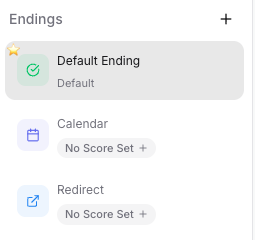
Success Message: a headline and text on your form's design. The usual choice for unqualified leads or simple thank-you screens. Click into the text on the canvas to edit it.
Redirect: sends the visitor to a URL of yours, for example a thank-you page carrying your tracking pixel. You can append the lead's answers to the URL as query parameters; see How to Pass Form Field Values as URL Parameters in Redirects. On an embedded form, the redirect takes over the whole page, not just the form box.
Calendar: a booking widget inside the form, pulling live availability from GoHighLevel or Calendly, so qualified leads book without leaving the form. After a booking you choose what happens next: show a confirmation message or redirect to a URL. GoHighLevel calendar endings can also add booking tags that fire only when a call is actually booked.
Each ending carries a qualification: Qualified, Unqualified, or No qualification. Whoever reaches the ending gets that status. It drives your analytics (qualified vs unqualified counts), lets you filter leads, and sets the ending's automatic tag: roas-qualified for Qualified, roas-unqualified for Unqualified, and roas-noqualification for No qualification. Changing the qualification swaps the tag for you.
The ending's Tags section lists the CRM tags applied when a lead completes the form at this ending. Edit them freely; the full picture of when tags are added and removed is in How ROASForm Tags Work with GoHighLevel.
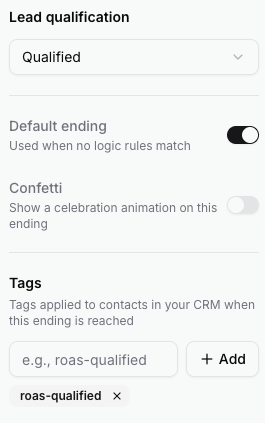
Want to celebrate? Turn on the Confetti switch in an ending's settings to play a celebration animation when the visitor lands there. It is available on Success Message endings, and on Calendar endings that show a confirmation after booking, where the confetti plays on the booking confirmed screen. Redirect endings don't offer it, since the page navigates away. The builder preview replays the animation whenever you select the ending, so you can see it without submitting the form.
Logic rules decide first. In the Logic tab you route leads to endings based on their answers, for example budget above your minimum goes to the Calendar ending.
Then the score. If no logic rule sent the lead to an ending, the ending whose Score Range contains their total wins. See Conditional Logic and Lead Scoring.
The default ending is the fallback. Exactly one ending is marked as default, and it is shown when no logic rule and no score range picks another ending. Use the Default ending switch in an ending's settings to change which one it is; step-by-step in How to Change The Default Ending.
You can mix as many endings as you need, including several calendars (even GoHighLevel and Calendly in the same form) booking into different calendars based on the lead's answers.
Calendar endings need contact fields. A GoHighLevel calendar needs at least one required Email or Phone question. A Calendly calendar needs both a required Name and a required Email question. The builder enforces it: it marks the fields required or adds them for you, and stops you deleting the last one. A red warning icon on a calendar ending means it has a configuration issue (for example no calendar selected, or a contact field that is missing or not required).
An ending with an issue can't be the default. Fix the warning first, then flip the Default ending switch.
Endings mark completion. Reaching any ending counts the submission as complete: ending tags are applied, abandon tags are removed, and the lead stops counting as a partial.

