ROASForm gives you two ways to make a form react to answers. Conditional Logic jumps a visitor to a specific question or ending based on what they just answered. Lead Scoring adds up points across all their answers and picks an ending by score range. Most qualification funnels use both: logic for hard disqualifiers, scoring for everything else. Both live in the tabs at the top of the builder.
Open the Logic tab. Every question is listed; click Add logic on the one whose answer should decide where the visitor goes next. A rule has two halves:
IF: a question, an operator, and a value, for example "2. What type of business do you run?" is "Something else". Click Add condition to combine several, and choose whether all of them must be true or any one is enough.
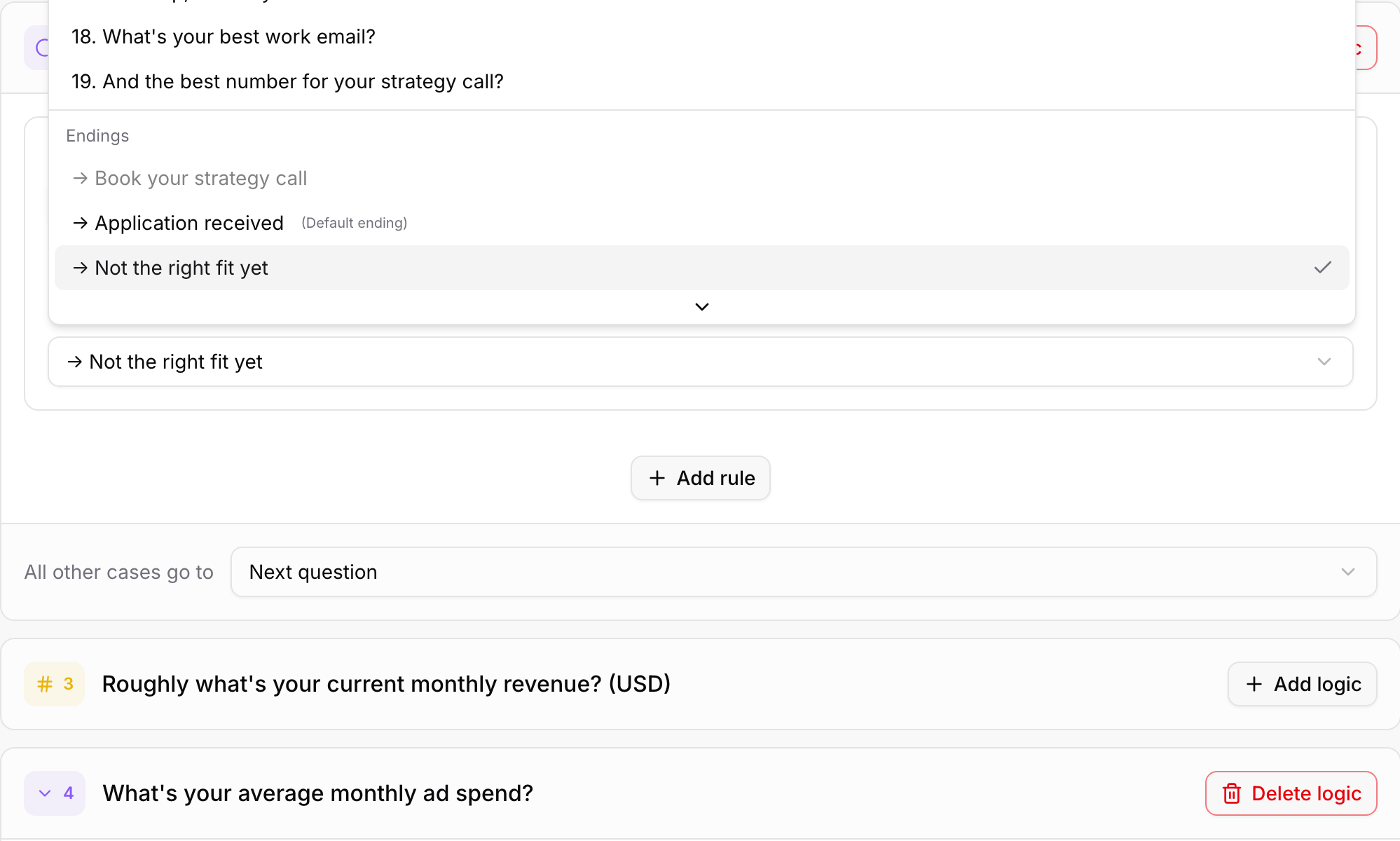
THEN: where to jump. The list shows every later question and, at the bottom, your endings (the default one is marked "Default ending").
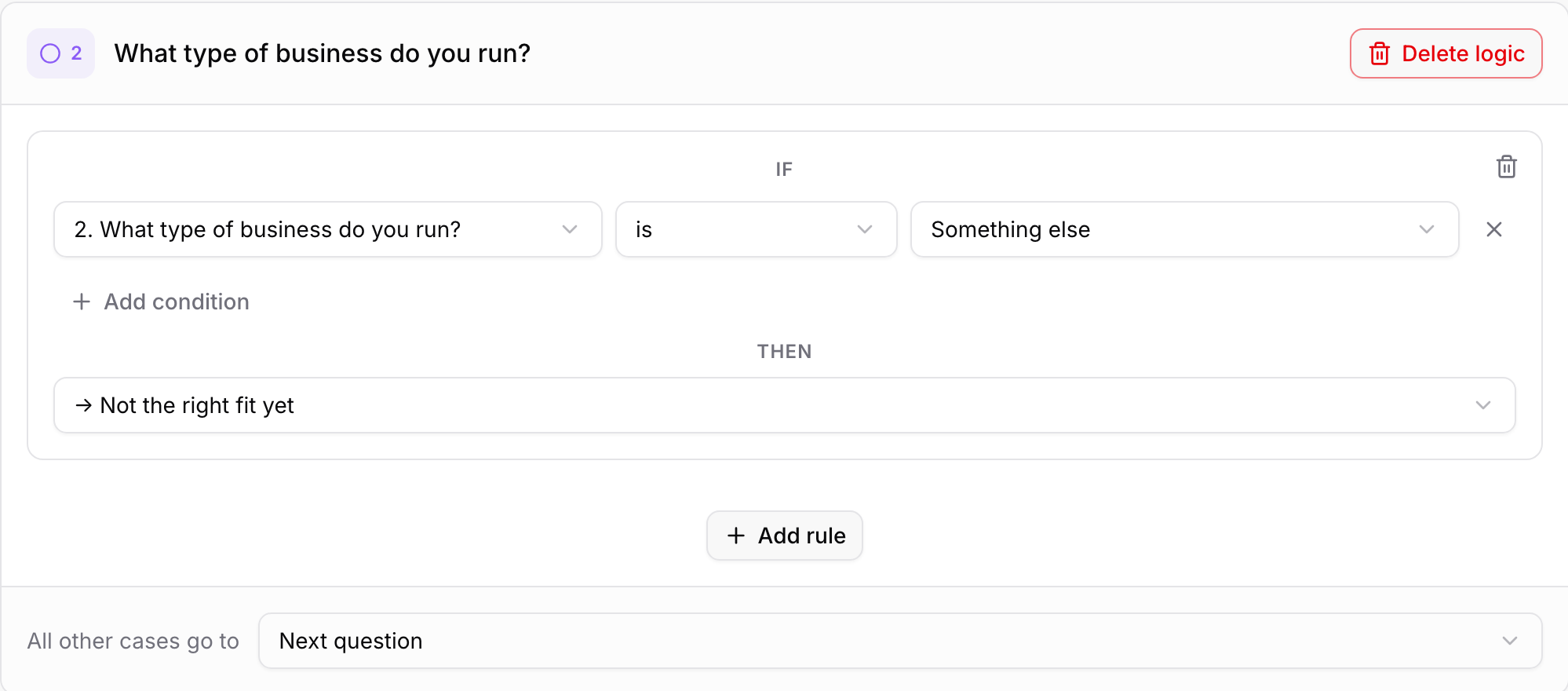
Click Add rule for more rules on the same question; they are checked top to bottom and the first match wins. All other cases go to sets what happens when no rule matches: the next question by default, or any question or ending you pick. Delete logic removes all rules from a question.
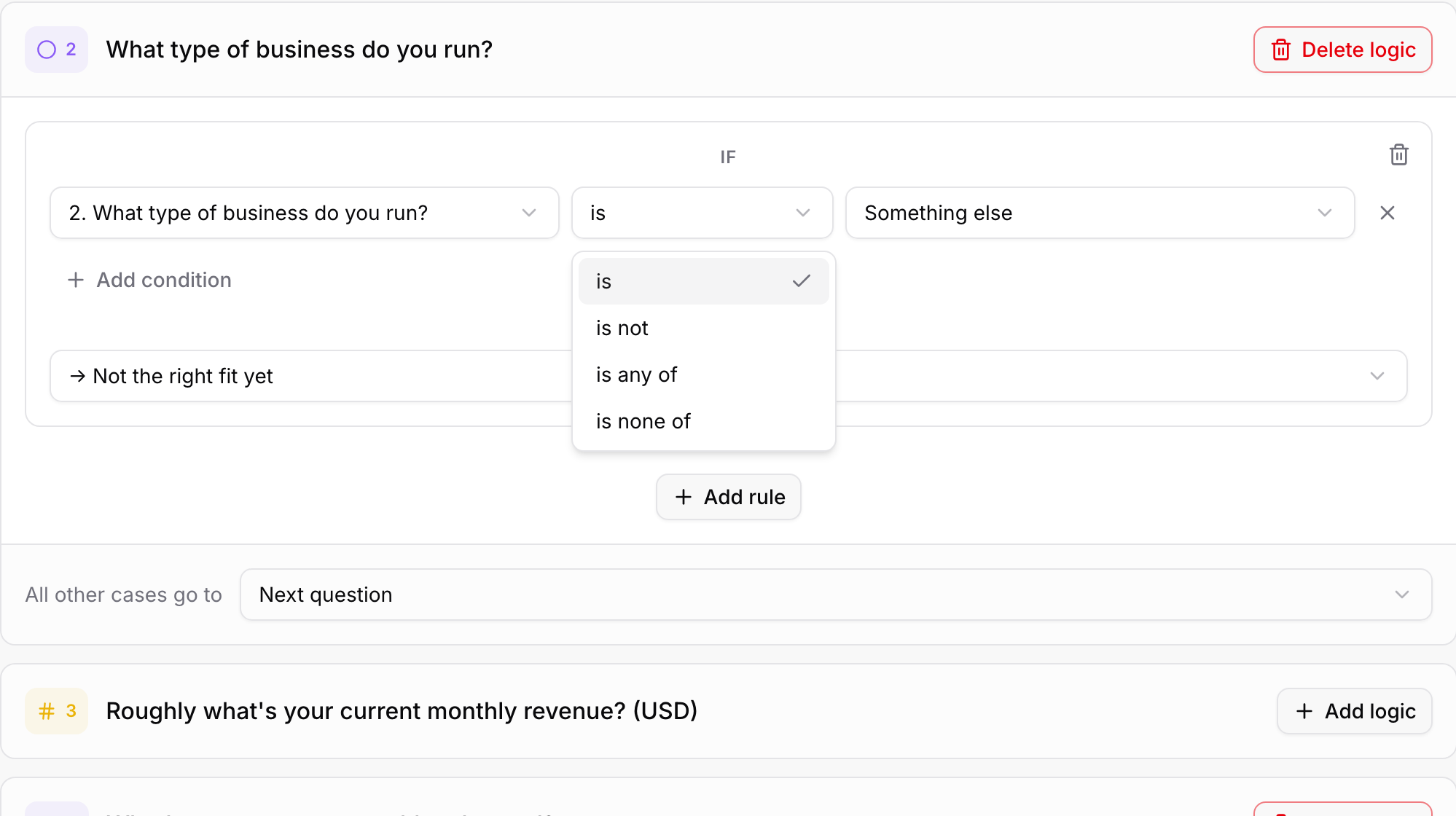
Choice questions: is, is not, is any of, is none of (the last two take several options at once).
Number, Opinion Scale, Rating: equals, is greater than, is less than.
Text questions: is equal to, is not equal to, contains, does not contain, begins with, ends with.
Email: contains, does not contain, and is personal email (Gmail, Yahoo, and similar), handy for routing consumer addresses away from a B2B calendar.
A question or ending appears disabled in the THEN list when jumping there would skip a required question the visitor has not answered yet, or when the ending itself has a configuration issue (for example a Calendar ending without a calendar, or without the email or phone field it needs). Hover the item for the exact reason. To unlock it, move the required question earlier, make it optional, or fix the ending.
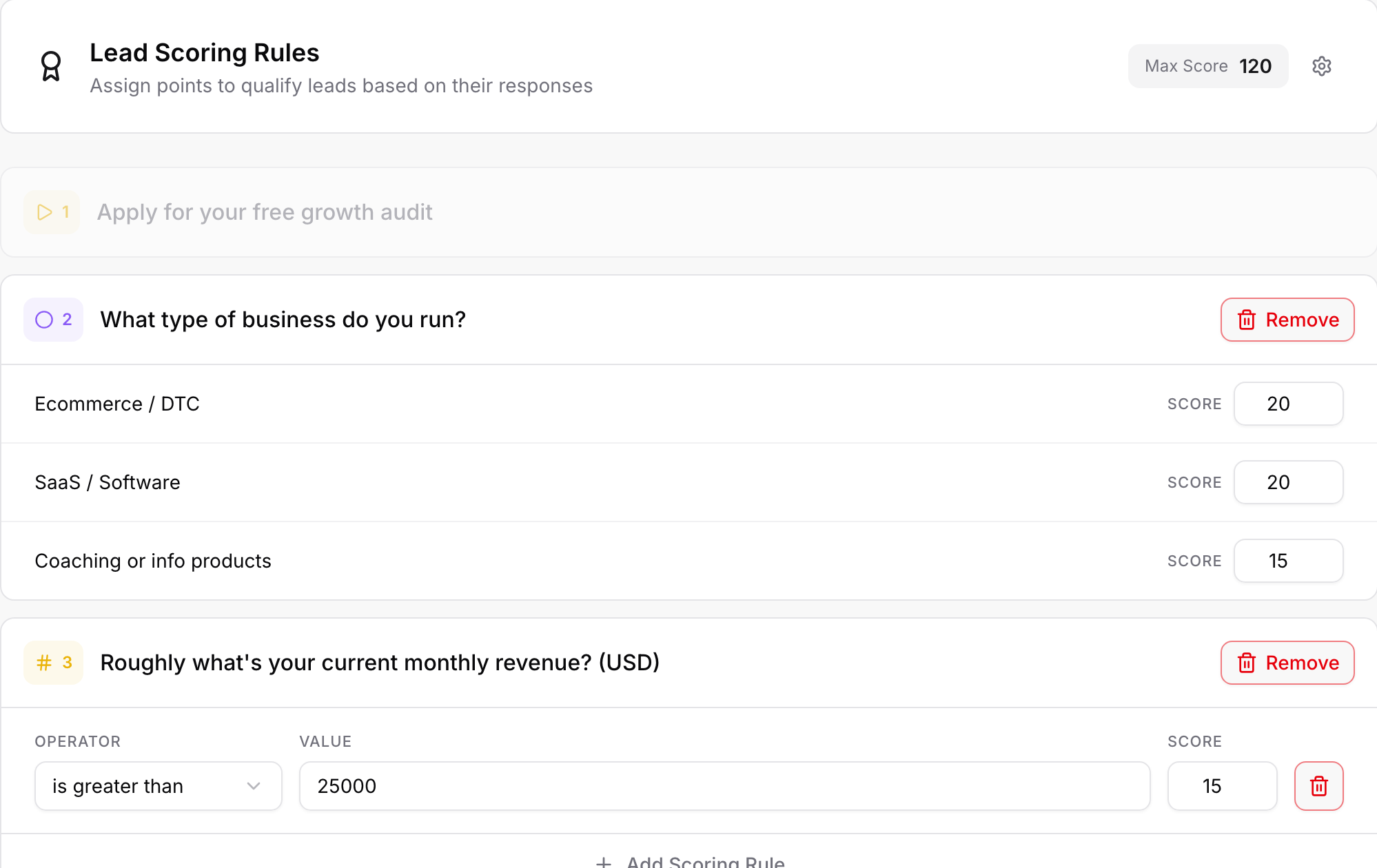
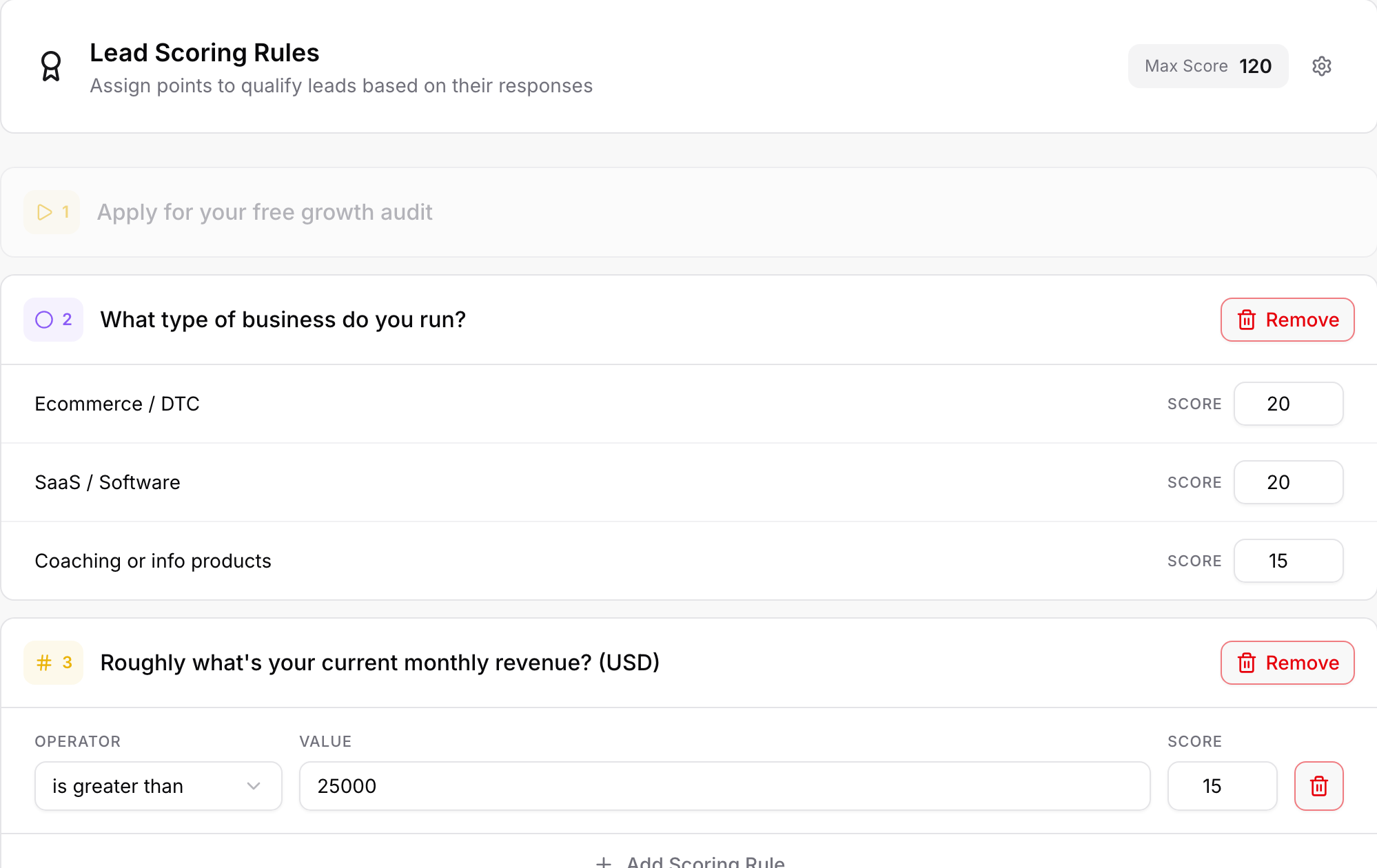
Open the Scoring tab. Here you assign points to answers; the visitor's points add up as they go, and their total decides both the ending they see and the lead score you can filter on and send to your CRM.
Choice questions: type a score next to each option (leave 0 for neutral answers).
Number questions: click Add Scoring Rule and set an operator, a value, and the points, for example "is greater than 25000" scores 15. Add several rules for tiers.
Max Score at the top is calculated for you: the highest total a visitor can reach. Use it to sanity-check your ranges.
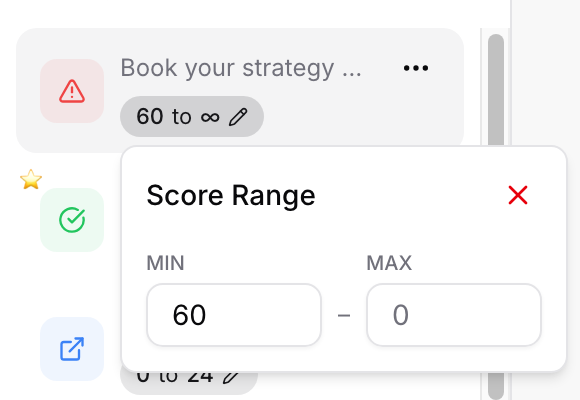
Each ending can carry a Score Range. In the Endings list, click the range badge (or the pencil) on an ending and set MIN and MAX; leave MAX at 0 for "no upper limit", shown as ∞. A typical setup: Calendar ending 60 to ∞, thank-you ending 0 to 24, and the default ending with no range for everyone in between.
Click the gear next to Max Score to open Scoring Settings. Once the form has a CRM selected in Form Settings, you can turn on passing the score to a custom field there; see Mapping Form Answers to GoHighLevel Custom Fields.
Logic runs as the visitor answers. A matching rule jumps them straight to the target question or ending, skipping everything in between (skipped questions simply stay unanswered).
Score ranges are checked when the last question is answered. Endings are tried in the order they appear in the Endings list and the first range that contains the total wins, so keep ranges from overlapping.
The default ending catches everything else. No matching rule and no matching range means the ending marked Default. See Endings Explained.
Use logic for instant disqualifiers (wrong country, no budget) and scoring for the nuanced stuff; it keeps the rules short.
Put scored questions before contact fields so the visitor's total is complete when the ending is chosen.
Test with the preview: walk through each path and confirm you land on the ending you expect. The Drop-off report later shows where real visitors leave.

