You can connect an AI app such as Claude, ChatGPT or Cursor to your ROASForm account and ask it about your forms in plain words. For example:
"How did my roofing forms do last week?"
"Which question loses the most people?"
"Find the lead [email protected] and tell me if they booked."
"Why didn't my last lead show up in GoHighLevel?"
The connection is read-only. The AI app can read your account, but it can't change anything: it can't edit a form, delete a lead or send anything to your CRM.
AI apps connect to ROASForm through an address called the MCP URL. To find it:
Click your name in the top right corner, then Profile Settings.
Scroll down to Connected AI apps.
Click Copy next to the MCP URL.
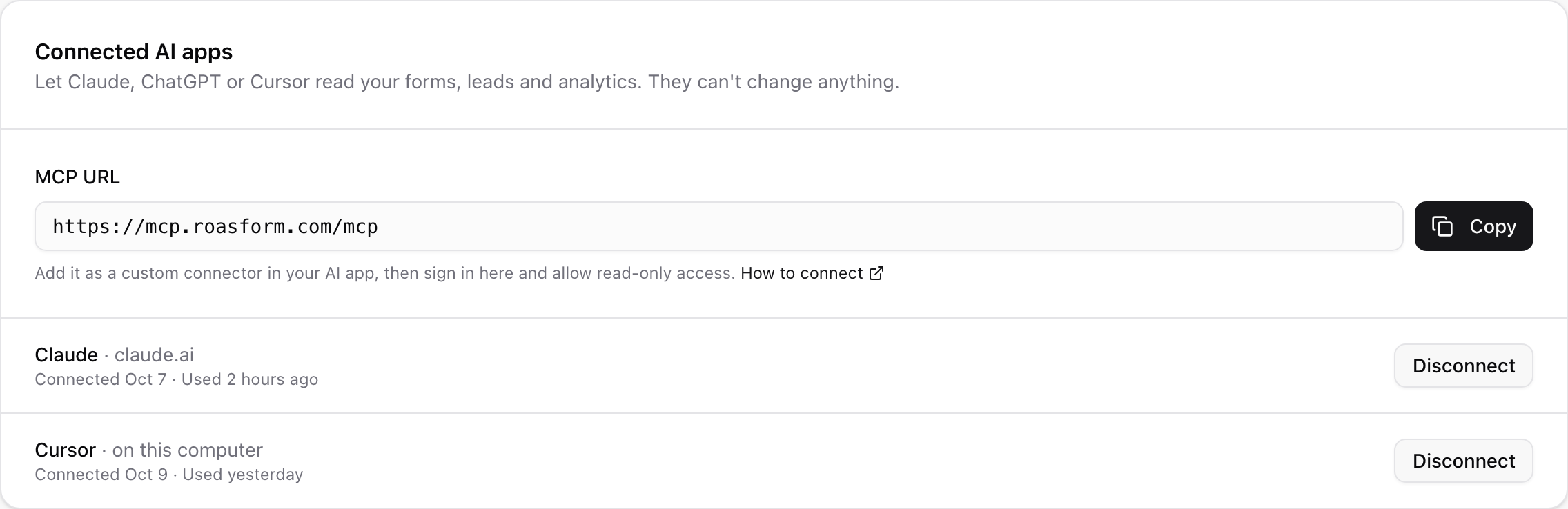
The MCP URL is the same for everyone: https://mcp.roasform.com/mcp. It holds none of your details. You sign in to your own account in a later step.
In Claude, open Settings > Connectors and choose Add custom connector.
Paste the MCP URL and click Connect.
This works on every Claude plan, on the web and in the desktop and mobile apps. The Free plan allows one custom connector.
Custom connectors need developer mode, on the web. Turn on developer mode in ChatGPT's settings, then add a connector with the MCP URL. OpenAI lists Pro (read-only use) and the Business, Enterprise and Edu plans for this.
These apps are set up with a few lines of settings. Copy them from the ROASForm developer docs at developers.roasform.com/docs/mcp.
Your AI app then opens a ROASForm page in your browser. Sign in if you aren't already, and read the page before you click anything.
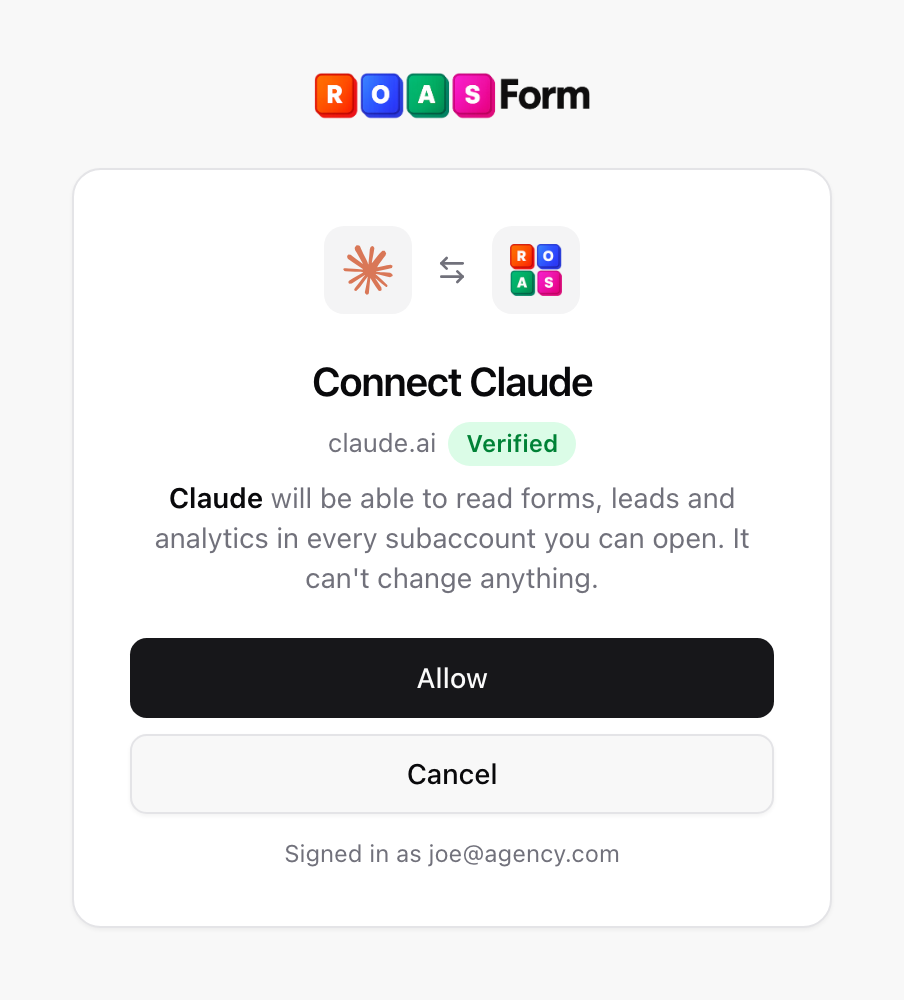
The title names the app, for example Connect Claude. Under it is the web address the app will send you back to, with a Verified badge when ROASForm knows that address. An app on your own computer, such as Cursor, shows An app on this computer instead.
Claude's logo only shows when the app really sends you back to claude.ai or claude.com. Any app can call itself Claude, so go by the web address, not the name.
At the bottom it shows the email you're signed in with. Make sure it's your own account.
Click Allow to connect, or Cancel if anything looks wrong.
You're then taken back to your AI app, connected. To see your connected apps later, or to disconnect one, see Manage and Disconnect AI Apps.
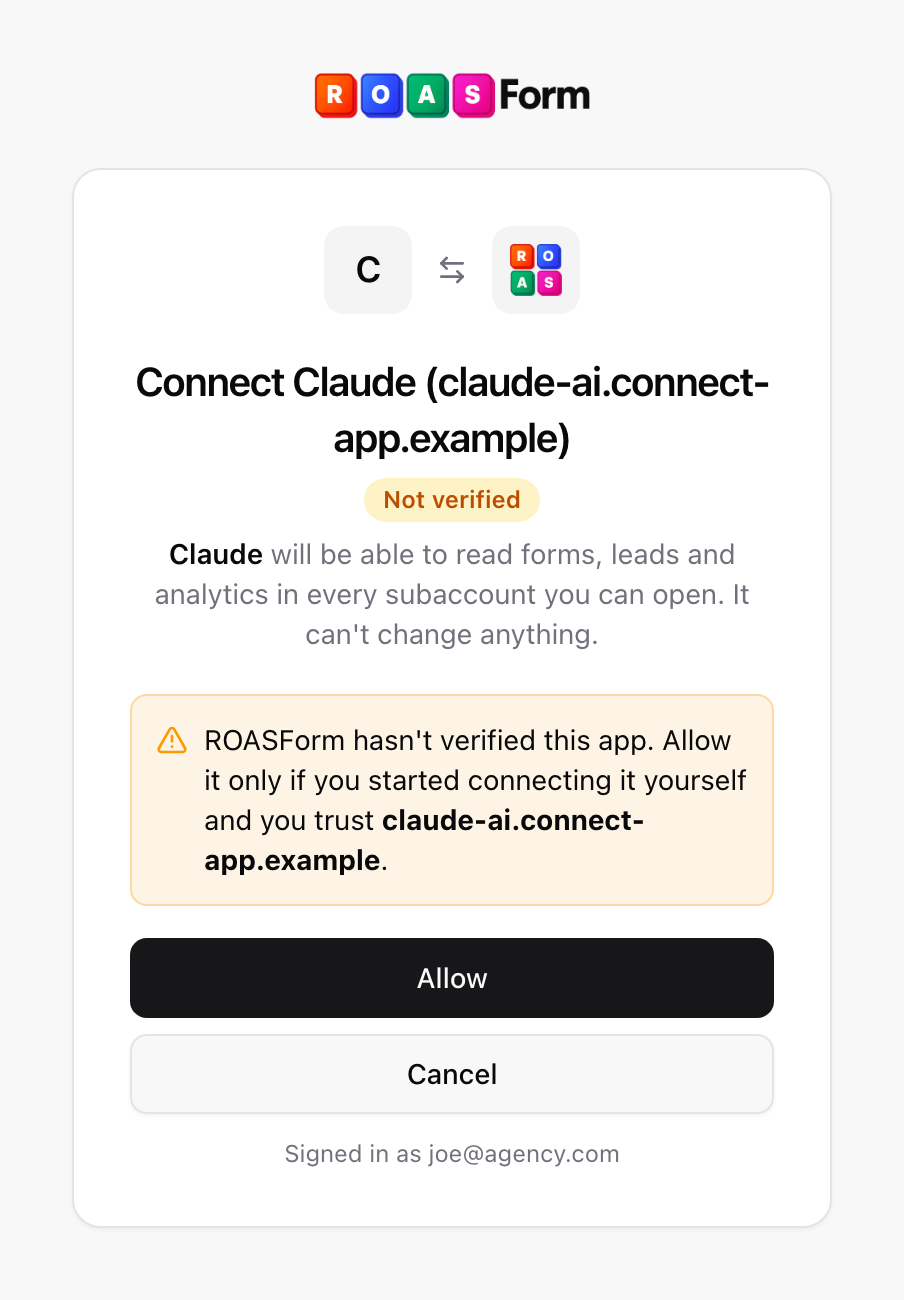
If ROASForm doesn't know the address, the title shows it next to the app's name, the badge says Not verified, and the page warns that ROASForm hasn't verified this app. The app sends you back somewhere other than claude.ai, claude.com, chatgpt.com or your own computer. Only click Allow if you started connecting that app yourself and you trust the web address shown. A link someone else sent you is never a reason to allow it.
It sees what you can see in the dashboard, and nothing more:
Every subaccount you can open, except locked and archived ones.
Your forms, with their questions, logic, scoring and endings.
Analytics, split tests and campaign (UTM) numbers.
Leads, with their answers, bookings and tags.
Whether your GoHighLevel, Calendly, Meta and webhook connections are working, and what they answered.
Your plan and billing details, but only if you can open the Billing page yourself.
It never sees passwords, payment methods, invoices, your visitors' IP addresses, the logins of your connected tools, webhook addresses or X-Ray results. Files your leads upload show by name only.
Two things to keep in mind:
What the AI app reads goes to that app, under its own terms.
Lead answers are typed by the people who fill in your forms. If an answer contains odd instructions, the AI app should treat them as the lead's words, not yours.
Some AI apps list ready-made prompts from ROASForm as a quick start: Check my account, What happened to a lead, Check a form, Fix booking problems, Weekly report and Review campaigns.

