

The Blocked List keeps unwanted traffic out of every form in a subaccount. Anyone who matches a block cannot open or submit your forms; they never become a lead, never reach your CRM, and never count toward your submission limit. Blocks apply to future visits only: anything already collected stays as it is, and you can undo a block at any time.
Where it lives
Open Settings in the sidebar and choose Blocked List. The list is per subaccount, so each client account has its own.
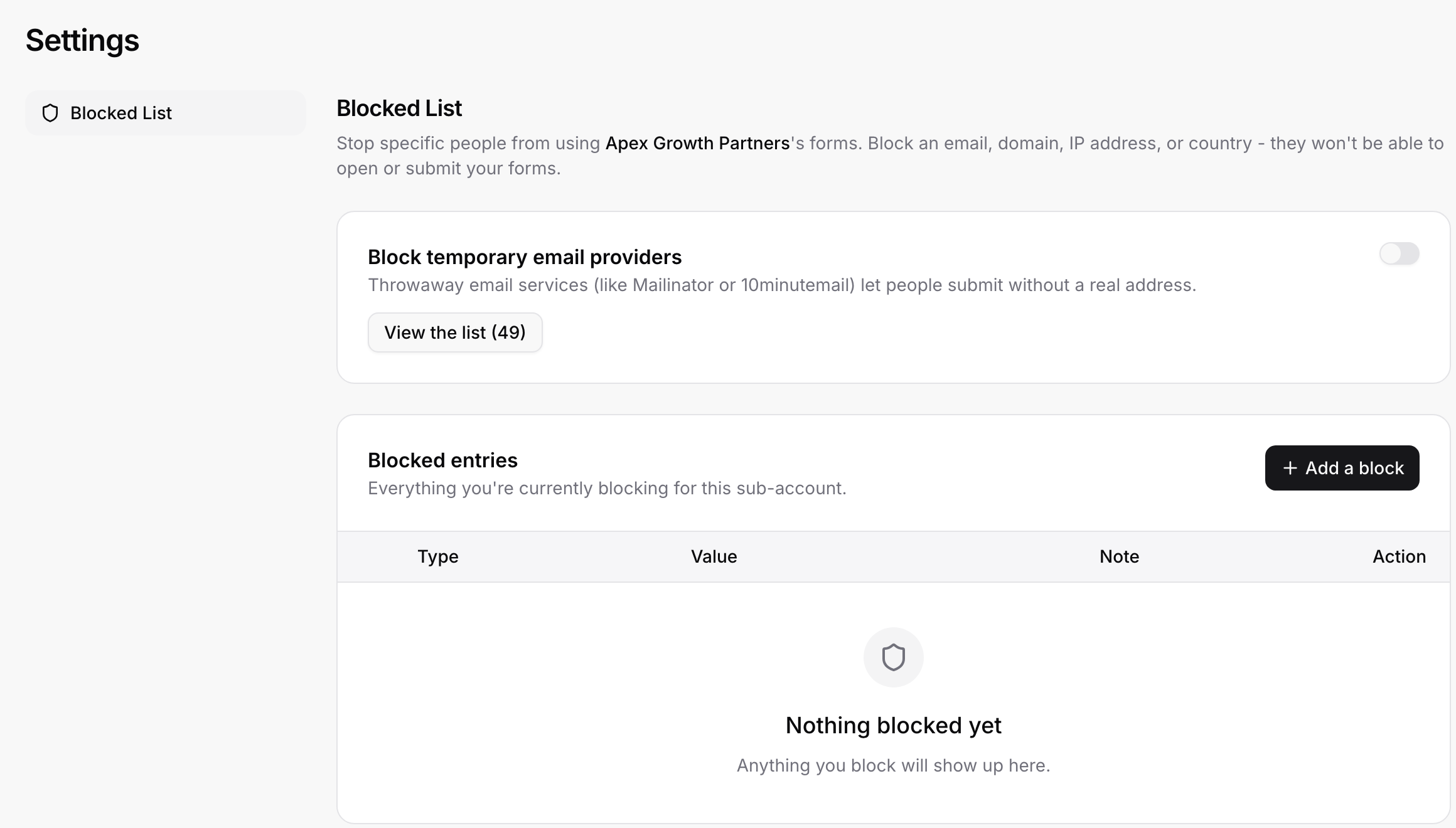
Block throwaway email addresses
Turn on Block temporary email providers to reject disposable addresses from services like Mailinator or 10minutemail. Click View the list to see the providers currently covered. This one switch removes most low-quality "test" leads without you maintaining anything.
Block a specific person, domain, network, or country
Click Add a block, pick a Type, enter the value, and optionally a note for your team:
Email: blocks this one email address.
Email domain: blocks everyone with an email at this domain, including its subdomains (blocking competitor.com also blocks [email protected]).
IP address: a single address, or a range like 203.0.113.0/24 to cover a whole network. Useful against a bot hammering the form from one place.
Country: stops anyone in that country from opening your forms. Use it when you only serve certain markets and ads keep leaking elsewhere.
Every block shows in the table with its type, value, and note; click Unblock to remove it.
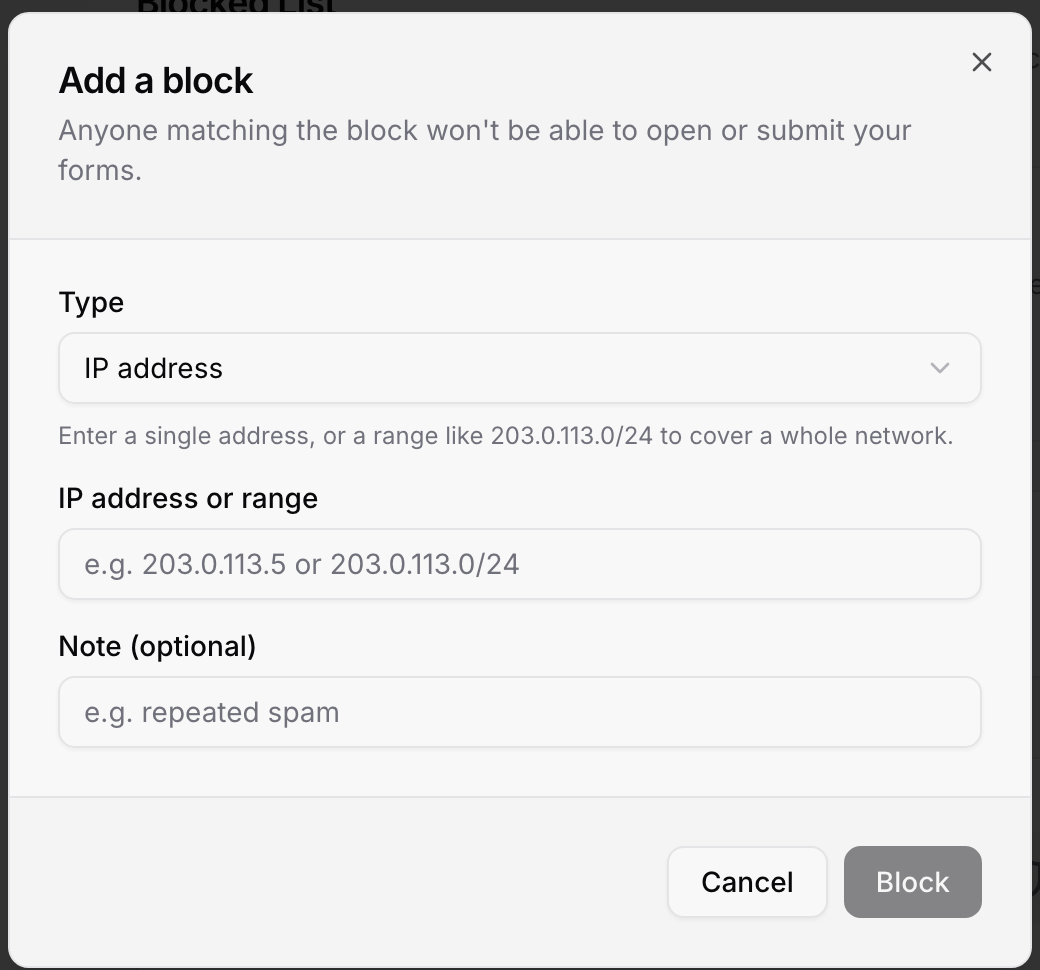
Block someone straight from a submission
Open a submission and click Block at the bottom. The dialog shows what ROASForm knows about that visitor and lets you block their email address, their IP address, or their browser fingerprint (which recognises the same device even if the email and IP change). Pick what you want and confirm; the entry appears in the Blocked List like any other.
What the visitor sees
A blocked email address gets a validation message at the email question ("This email address can't be used") and cannot continue. A blocked IP, country, or fingerprint cannot open the form at all.
Good to know
Blocks do not delete anything. Leads collected before the block stay in Submissions.
Test with care: blocking your own office IP range or country locks your team out of the live form too (the builder preview still works).
For fake-but-valid emails that are not disposable, use qualification instead: route them to an unqualified ending and skip the CRM push, rather than blocking a whole domain like gmail.com.