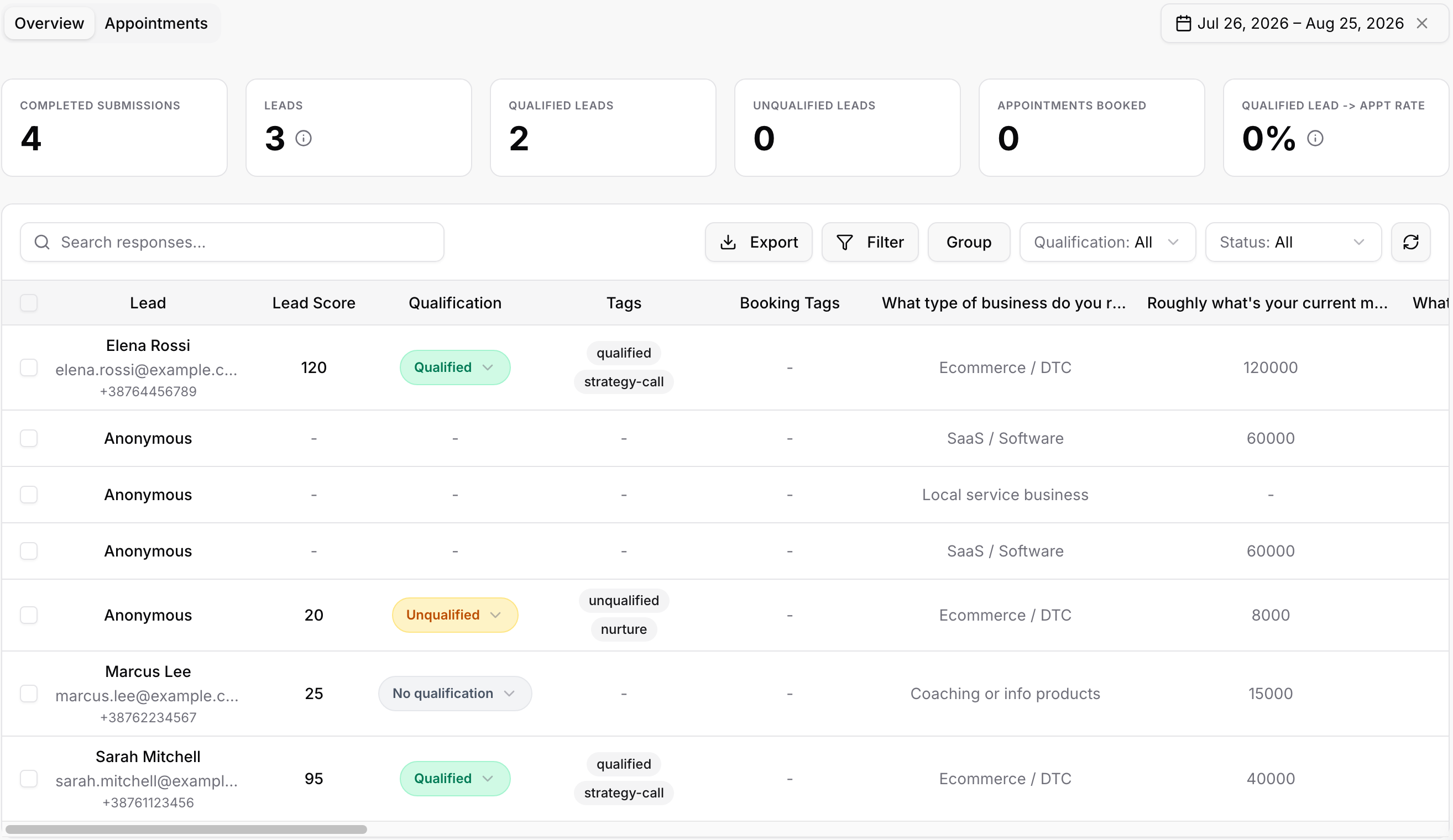
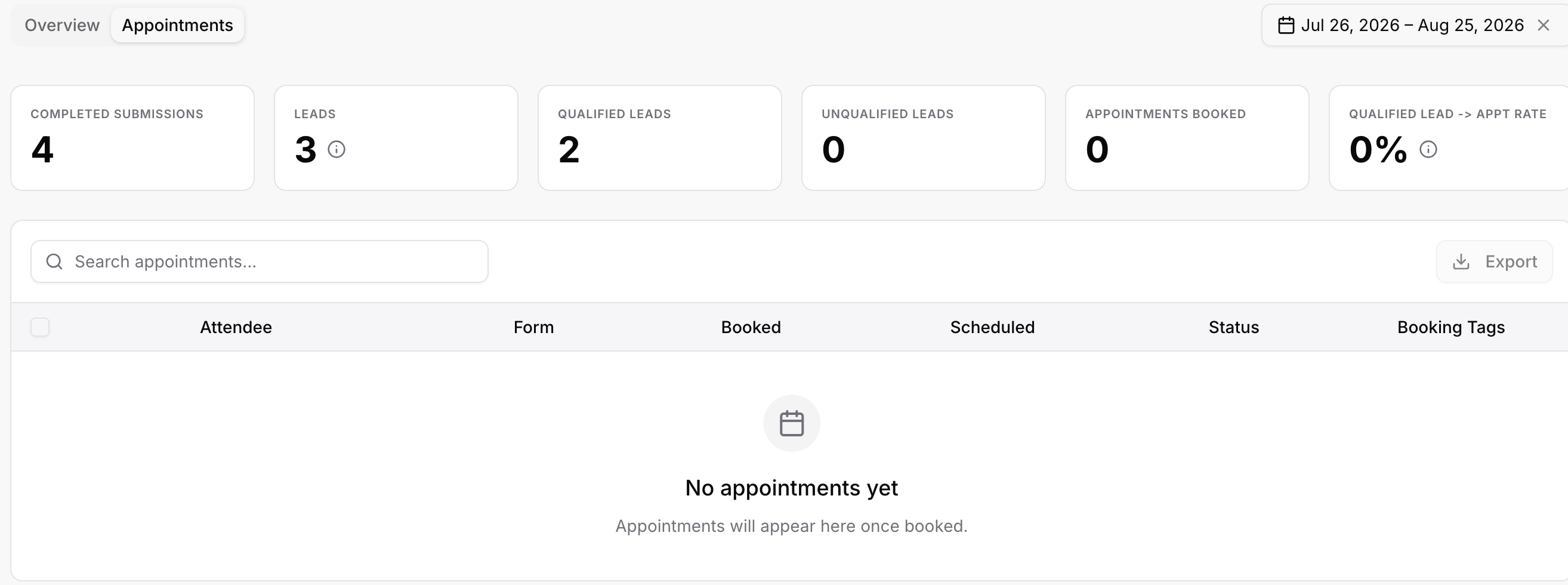
Open a form and click Submissions in the top bar. Every visitor who left an email or phone number, or completed the form, is a row here. The six cards at the top summarize the selected date range: Completed Submissions, Leads, Qualified Leads, Unqualified Leads, Appointments Booked, and the Qualified Lead to Appointment rate.
Each row is one submission:
Lead: name, email, and phone. Visitors who gave contact details but no name show as Anonymous.
Lead Score: the points from your scoring rules.
Qualification: Qualified, Unqualified, or No qualification, set by the ending the lead reached. Click it to change it by hand; useful when a rep disagrees with the automatic result.
Tags and Booking Tags: the CRM tags this submission applied.
One column per question, in form order. Scroll right to see them all.
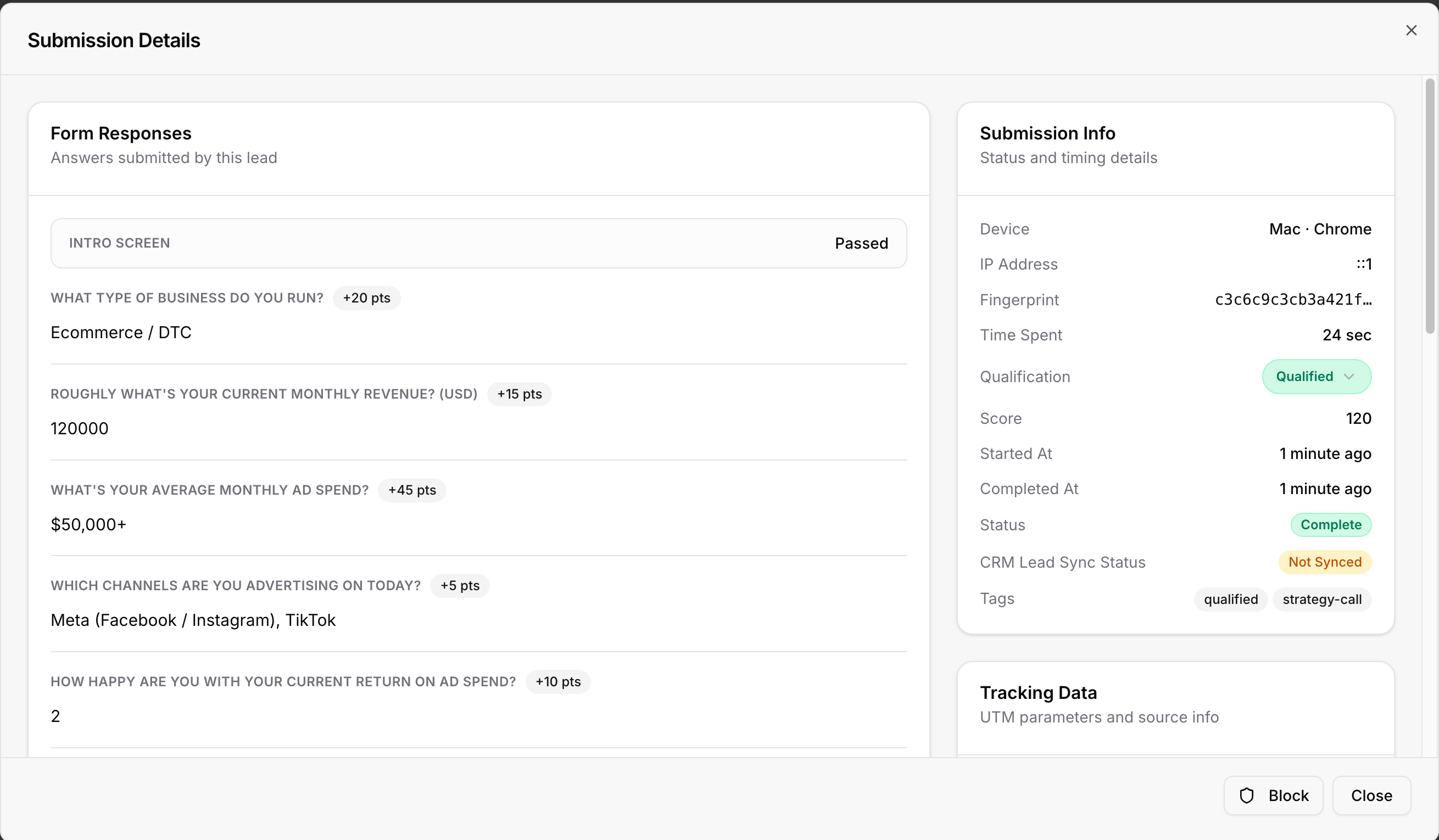
Click any row for the full Submission Details: every answer with the points it earned, plus Submission Info (device, IP address, fingerprint, time spent, qualification, score, started and completed times, status, CRM Lead Sync Status, tags) and Tracking Data (the UTM parameters and source the visitor arrived with). The Block button opens "Block this contact?", where you pick what to block: the email address, the IP address, or the browser fingerprint. It only affects future visits, nothing already collected changes, and you can undo it any time under Settings; see Blocking Spam and Unwanted Submissions.
Search responses matches names, emails, phone numbers, and answers.
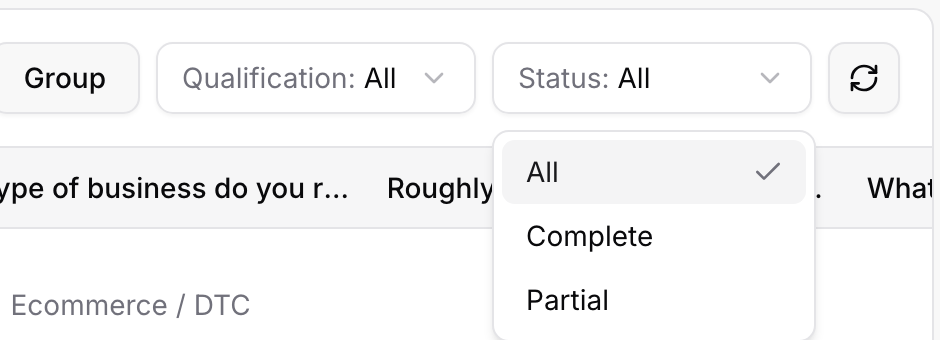
Status narrows to Complete or Partial submissions. Partials are visitors who left contact details but did not reach an ending; see Partial Submissions and Abandon Tags for how they are captured and synced.
Qualification narrows to Qualified, Unqualified, or No qualification.
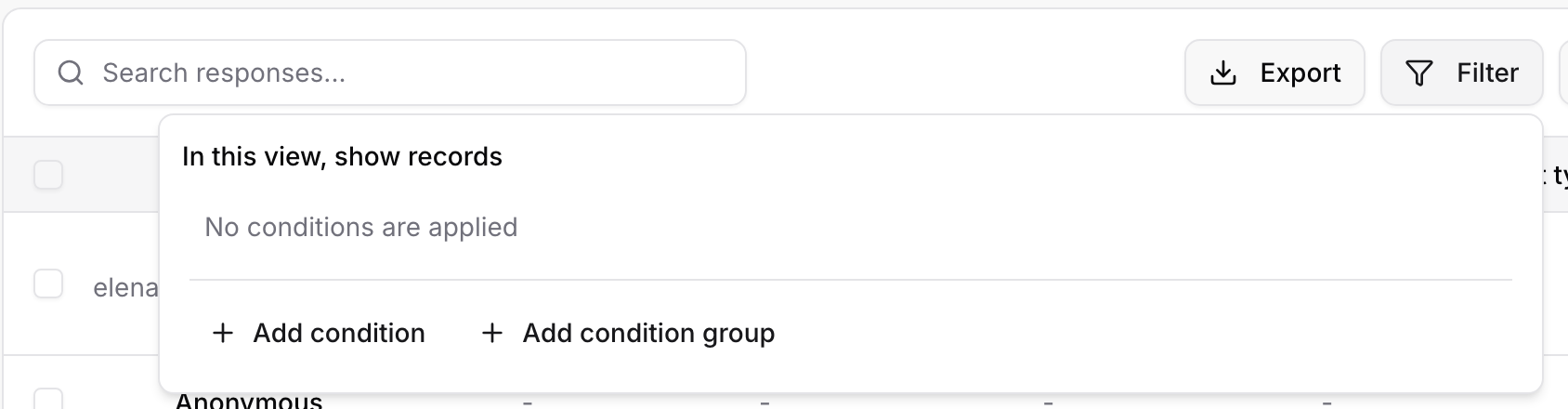
Filter builds conditions on the tracking data that arrived with each submission ("In this view, show records where..."). The field list shows every parameter your submissions carry, for example utm_source, utm_campaign, or country; the operators are contains, does not contain, is, is not, is empty, and is not empty. Add several conditions, or a condition group for and/or logic, and the table and cards update. This is how you answer "which campaign sends the leads that actually qualify?".
Group collapses the table into groups, with counts per group, and lets you add subgroups to nest.
The date range picker in the top right applies to the cards and the table alike.
Tick the checkbox on a row (or the header checkbox for the whole page) and the toolbar switches to Delete (n) and Export (n) for the selection. With nothing selected, Export downloads the current view: whatever filters, grouping, and date range you have applied. The export is a CSV with one column per question plus the lead's details and every tracking parameter found in the rows. Deleting is permanent, so export first.
The Appointments tab lists calls booked through this form's Calendar endings: attendee, form, when it was booked, when it is scheduled, status, and booking tags, with its own search and export. The same appointments appear on the Dashboard under Upcoming Appointments.
When a CRM is connected, each submission shows how the push to GoHighLevel went: Synced, Synced with dropped fields, Processing, Not Synced, or Sync Failed, and a sync button to resend after you fix a problem. What each state means and how to fix it is covered in Troubleshooting: Leads Not Showing Up in GoHighLevel.
Leads belong to the form they came from. To see one person across every form, open Global Data → Contacts and search for them.
For rates, trends, and the question where visitors drop off, switch to the Analytics tab; see Understanding Your Form Analytics.
Partial submissions do not count toward a free plan's submission limit; completed ones do.
Deleting a form deletes its submissions. Export first if you need the data.

