ROASForm can automatically apply tags to contacts pushed to GoHighLevel, or any CRM that we integrate with.
Tags can be applied in three places:
Form Endings, when someone completes the form and reaches a specific ending
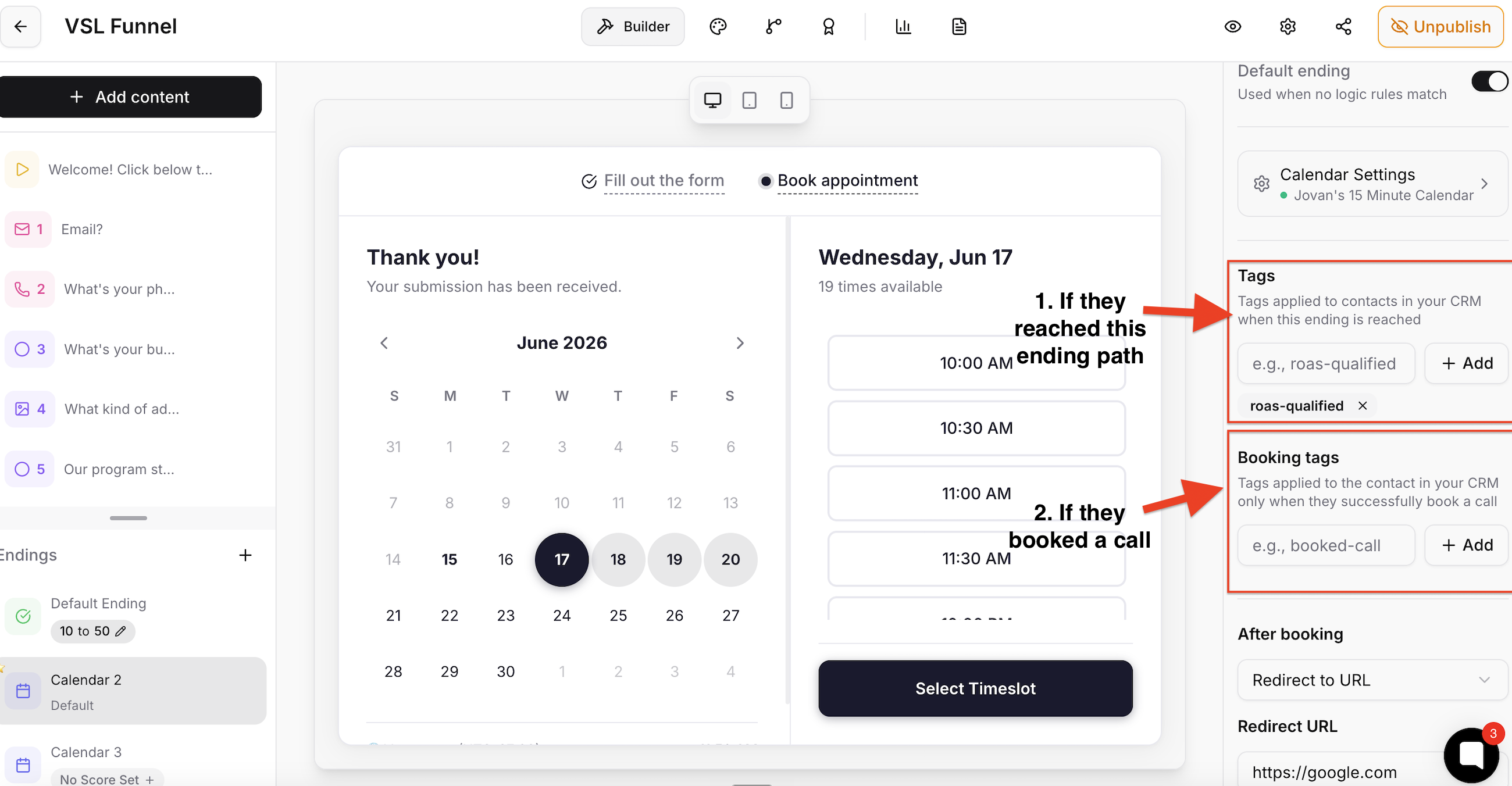
Booking tags on a Calendar ending, applied only when the lead actually books a call
Form Settings with Partial Submissions Enabled, when someone starts the form but does not finish it
This allows you to trigger different GoHighLevel automations based on whether someone completed the form, qualified, booked a call, or abandoned the form.
Each form ending can have its own tags.

For example:
Ending | Default Tag |
Calendar Widget Ending (Qualified Ending) | roas-qualified |
Thank You Message Ending (Unqualified Ending) | roas-unqualified |
By default, we apply these tags on qualified and unqualified form endings. You can remove them, edit them, or add additional tags.
To manage an ending's tags:
Open your form
Go to the relevant Ending
On the right side, find the Tags section
Add or remove the tags you want
When someone reaches that ending, ROASForm applies the selected tag to the contact in GoHighLevel.
Calendar endings have a separate Booking tags field (default: roas-booked). These tags are applied to the contact only when the visitor successfully books a call. A lead who reaches the calendar but leaves without picking a time gets the ending's regular tags, but not the booking tags. Booking tags are available on GoHighLevel calendar endings.

New forms have Partial Submissions turned on by default when your subaccount is connected to GoHighLevel (you can turn it off in Form Settings)
This means if someone enters their email or phone but does not finish the form, ROASForm still saves them as a lead. Once the visitor goes idle (60 seconds by default) or closes the form, ROASForm creates or updates the contact in GoHighLevel with the answers they gave so far and applies the abandon tags, allowing you to maximize the amount of leads you capture. If they come back and finish, the abandon tags are removed and the ending tags are applied instead.
You can create a separate automation in your CRM (for example, GoHighLevel) for leads that never finished your form, to get them back into your funnel.
By default, partial submissions also have a default tag (roas-abandoned) applied, but you can edit or change it.
This helps you identify leads who started the form but abandoned before completing it.
To manage partial submission tags:
Open your form
Go to Form Settings
Find Partial Submissions and the Abandon Tags field
Review the default tag
Remove or change the tag if needed
For the full mechanics (timing, what is sent, how the tag is cleaned up when a lead finishes), see Partial Submissions and Abandon Tags.
How to Trigger GoHighLevel Automations from ROASForm (using these tags as workflow triggers)
Troubleshooting: Leads Not Showing Up in GoHighLevel (if a tag didn't arrive)
How to Use Integration Logs (every tag is its own Tag addition row in the logs)