A split test shows two forms to your visitors at random and tracks which one performs better. You share a single test link (or embed code) instead of a form link, ROASForm assigns each visitor to the Control or the Variant according to your traffic split, and the results page compares both on completion, qualification, and booking rates.
Build the two forms in the same subaccount. The easiest way is to duplicate your current form and change one thing in the copy (fewer questions, a different skin, stricter qualification, different button copy). Change only one thing per test, or you will not know what made the difference.
Publish both forms. A test can only be started when both forms are published.
Go to Split Tests in the sidebar and click New Split Test. The wizard has three steps.
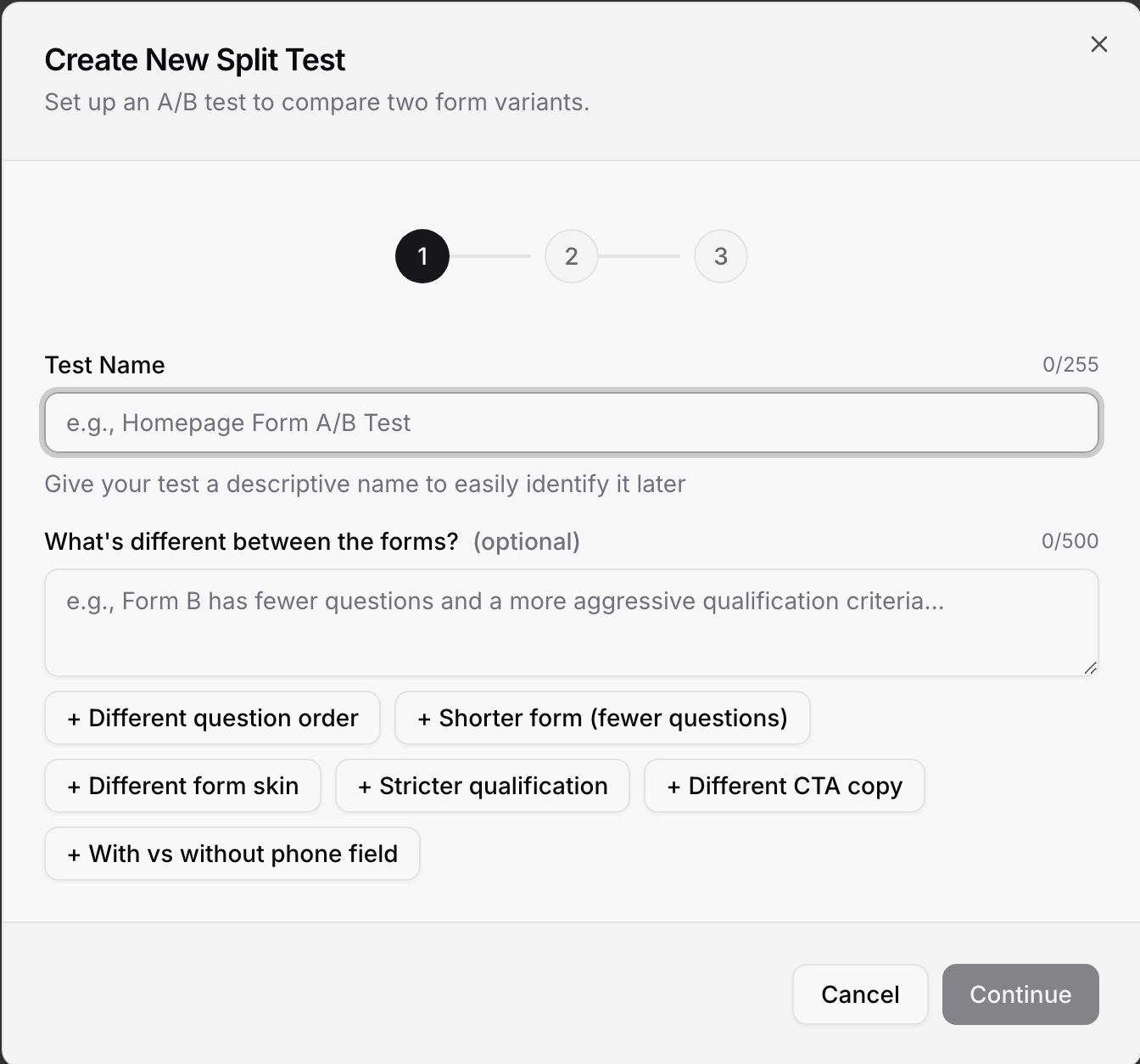
Step 1: Name it. Give the test a descriptive name and, optionally, note what is different between the forms. The suggestion chips (Different question order, Shorter form, Different form skin, Stricter qualification, Different CTA copy, With vs without phone field) fill the note for you.
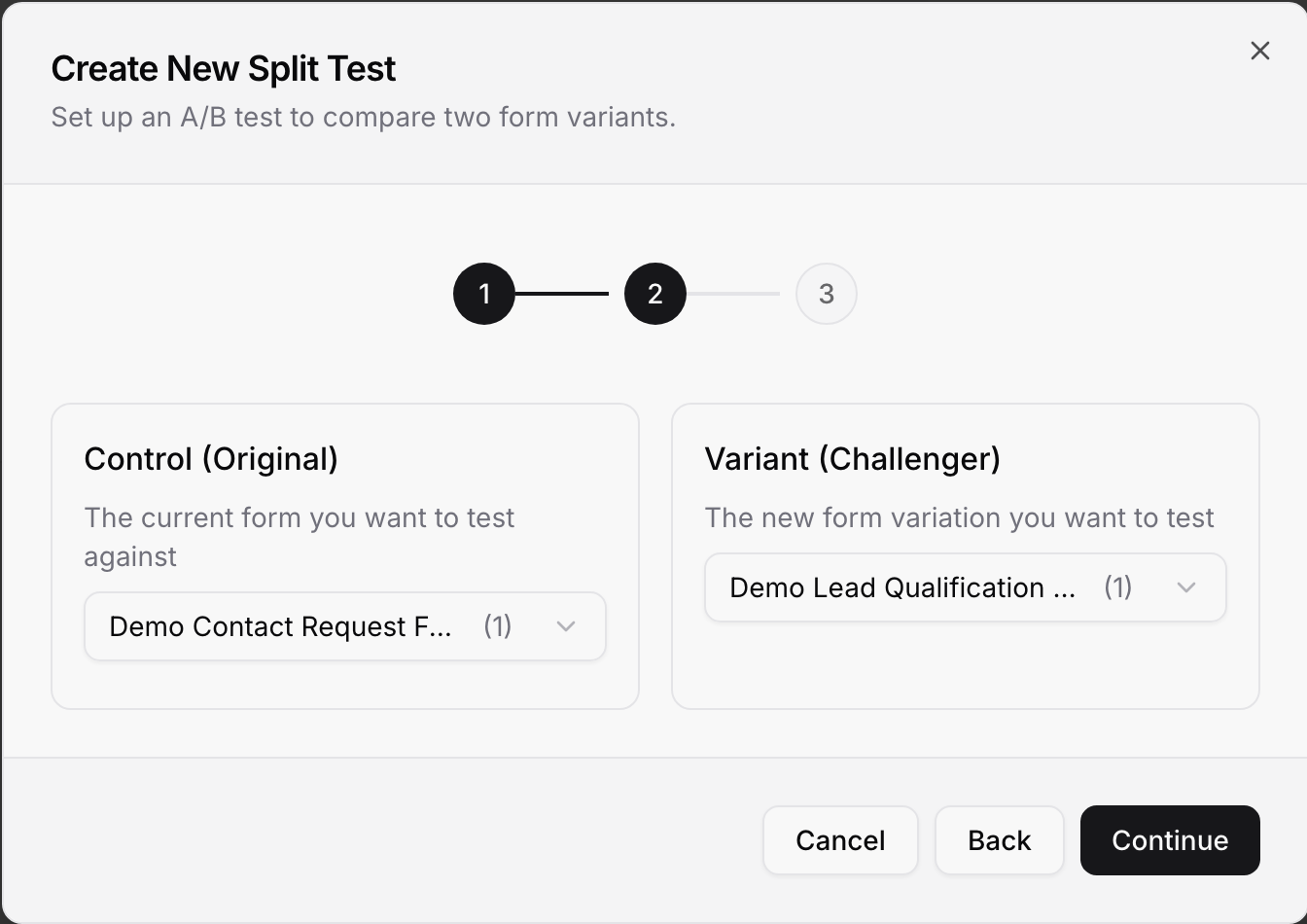
Step 2: Pick the forms. Choose the Control (Original), the form you are testing against, and the Variant (Challenger), the new version. They must be two different forms.
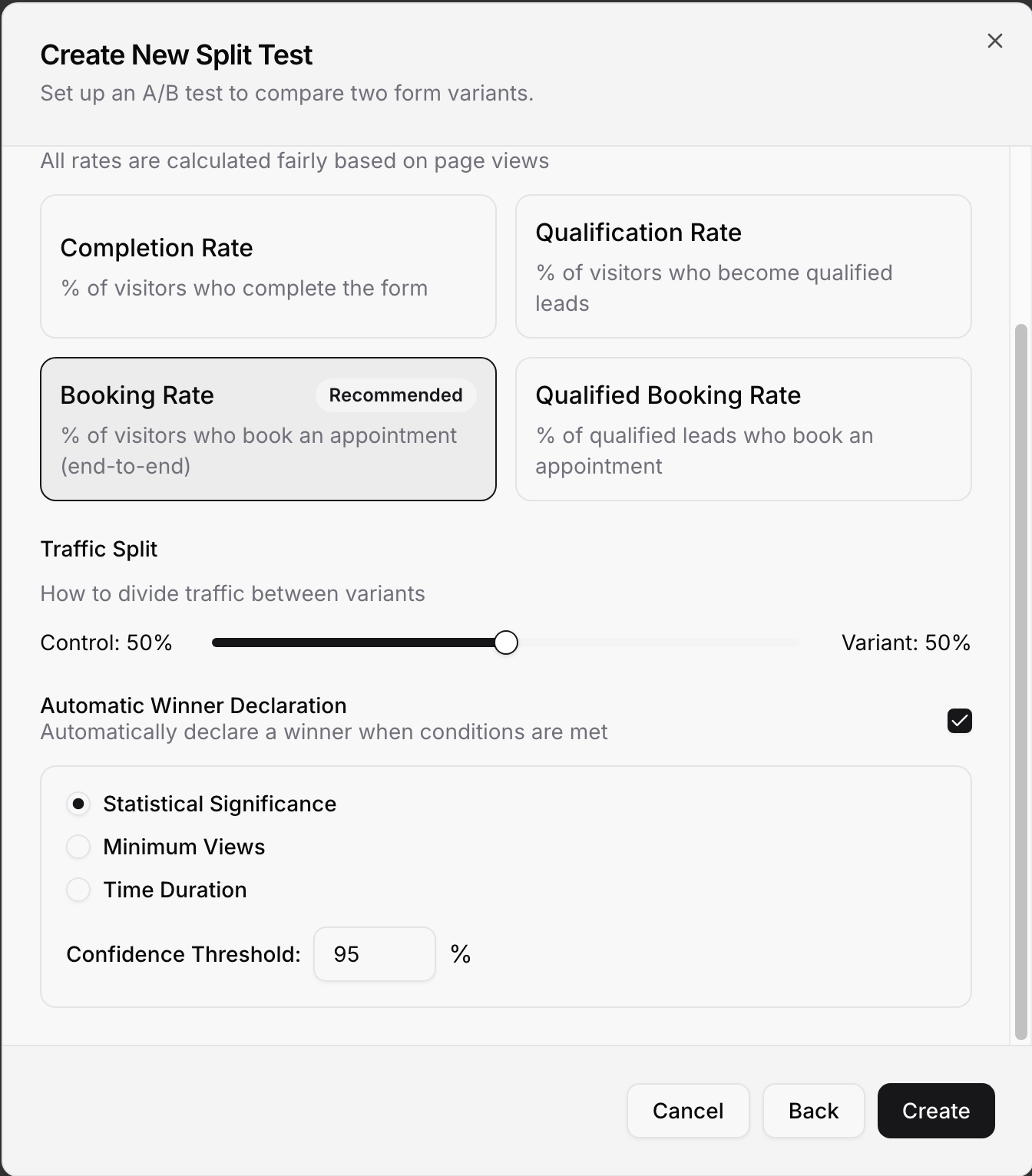
Step 3: Decide how to measure.
Which metric matters most? Completion Rate (% of visitors who complete the form), Qualification Rate (% who become qualified leads), Booking Rate (% who book an appointment, end to end; recommended), or Qualified Booking Rate (% of qualified leads who book). All rates are calculated from page views, so an uneven traffic split does not skew them. The primary metric is highlighted in the results; the others are still tracked.
Traffic Split: how visitors are divided, in 5% steps. 50/50 is the default and reaches a conclusion fastest; use something like 80/20 when you want to limit exposure to an unproven variant.
Automatic Winner Declaration: your stopping rule. Pick Statistical Significance (with a Confidence Threshold, 95% by default), Minimum Views per variant (1000 by default), or Time Duration (30 days by default).
Click Create.
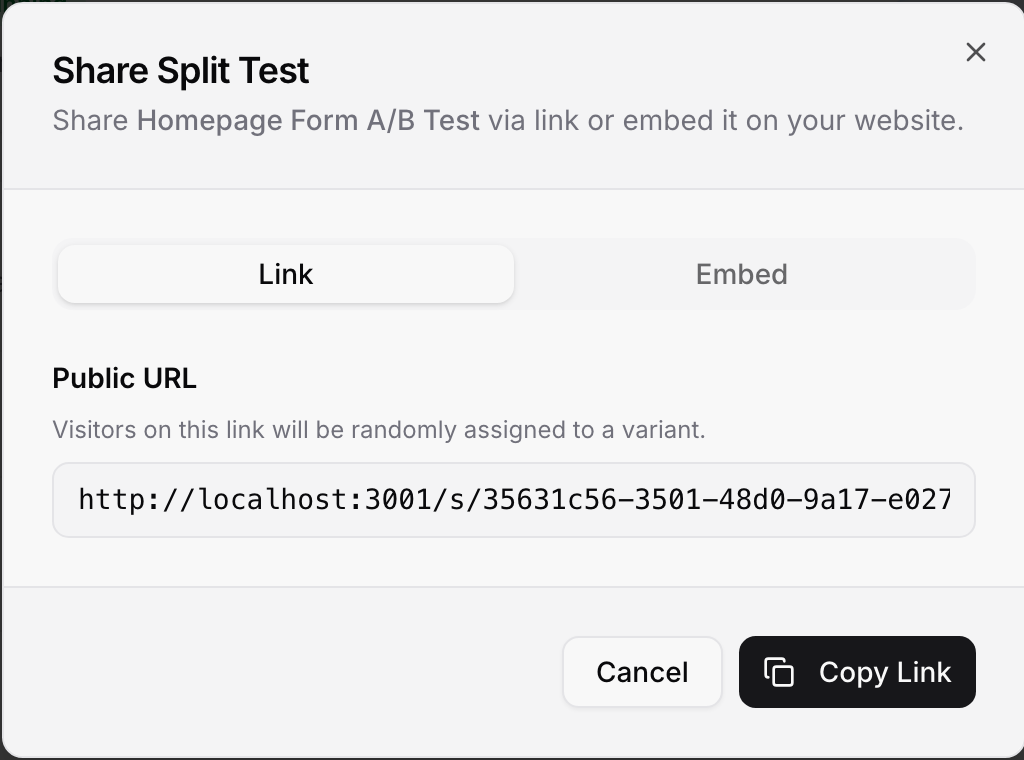
A new test is created Paused. On the test page, click Resume (or the play button on the list) to set it Live. Then click Share:
Link: the test's public URL. Visitors on this link are randomly assigned to a variant. Use it in your ads and emails instead of a form link.
Embed: an embed code that renders the test on your page; one snippet, same options as a normal form embed. See How to Embed Your Form on a Website.
Do not send traffic to the individual form links while testing; only the test link splits visitors.
The Split Tests list shows each test with its status (Live, Paused, or Completed), when it started, unique visitors and views, and Booked and Conversion for A and B side by side.

Open a test for the full picture:
Test Overview: status, leads and views per variant, total views, and a confidence figure.
Metrics Comparison: every tracked metric for A and B with the difference and, once one side is ahead, a winner marker. The rows are Completion Rate (Started to Submitted), Qualification Rate (Started to Qualified), Booking Rate (Started to Booked), and Qualified Booking Rate (Qualified to Booked). Your primary metric carries a Primary badge.

Confidence stays at 0% until each variant has at least 30 starts, and it rises with the gap between the variants and the amount of traffic. Treat it as a guide: a test with a few dozen visitors per side can flip; a few hundred per side is a much safer basis for a decision.
Pause stops the test. While paused, the test link shows "Split test not found" instead of a form, so switch your ads to the test link only while it is Live, or point them at a form link.
Edit (pencil on the list) lets you change the name, description, traffic split, and winner settings while the test runs. To change which forms are compared, create a new test.
End marks the test Completed and freezes the results with the winner. After that, send traffic to the winning form's own link, or duplicate it as the control for your next test.
Delete removes the test only. The two forms and all the leads they collected stay.
Visitors are assigned fresh on every visit and are not remembered, so someone who returns later may see the other variant. Avoid testing changes that would confuse a returning lead (a different offer or price, for example).
Leads still belong to the form they filled in. Open either form's Submissions tab to see its leads, or its Analytics tab for its own numbers; the split test page only holds the comparison.
One change at a time and enough traffic beat clever setups. If both forms perform the same after a few hundred visitors each, the change does not matter; move on to the next idea.

