Lead scoring already rewards good answers. With X-Ray Finance on, it can also reward good credit. Each lead gets one final score out of 100 that blends both.
X-Ray Finance must run on the form. Turn it on from the X-Ray button in the form builder. See Auto-Lookup Rules.
If it does not, the X-Ray Finance row on the Scoring tab reads Off, and selecting it opens the X-Ray panel so you can switch it on.
You still need your normal scoring rules on the questions. See Logic and Scoring.
Open the form, then the Scoring tab. The header is titled How leads are scored. It shows what each part is worth:
Answers up to N pts
X-Ray Finance up to N pts (once X-Ray scoring is on)
Both average to a Final score of /100
Below the header is the X-Ray Finance row, with a one-line summary such as "Credit score · up to 15 pts", or Off. The questions and their point rules follow.
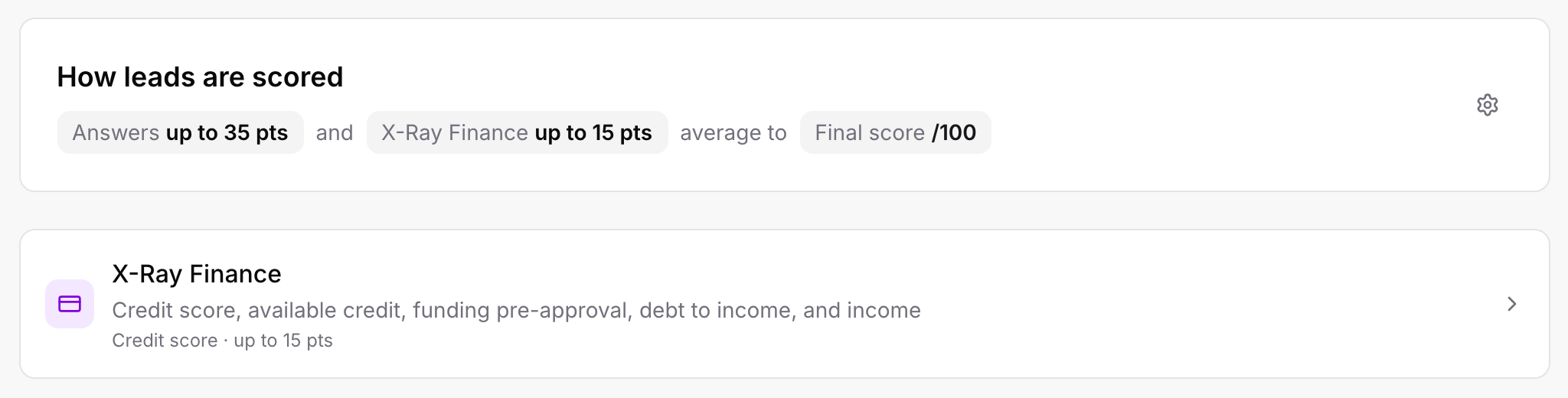
In the form builder, open the Scoring tab.
Select the X-Ray Finance row. A side panel opens, titled X-Ray Finance.
Switch on Credit score. You can switch on other numbers too (see below).
Close the panel. The header now shows the X-Ray Finance points.
Everything starts off. X-Ray scoring is on as soon as one number is switched on and has a tier worth points. The panel says:
"A soft check doesn't affect their credit."
A tier says: a lead with this score or more earns this many points. When you first switch Credit score on, it starts with these tiers:
750 or more: 15 points
690 or more: 10 points
650 or more: 5 points
600 or more: 2 points
Below the lowest tier a lead earns 0 points. The last line, Anything else, shows that 0.
To edit them:
In the panel, select the arrow next to Credit score (Edit Credit score).
Change a score in the left box, or the points in the right box. Points go from 0 to 100.
Select Add tier for another step. You can have up to six tiers.
Select the X on a tier to remove it.
Select the arrow again to close the row. The tiers sort themselves from best to worst.
When a row is collapsed it shows its best tier, for example "750 or more · 15 pts · 3 more tiers".
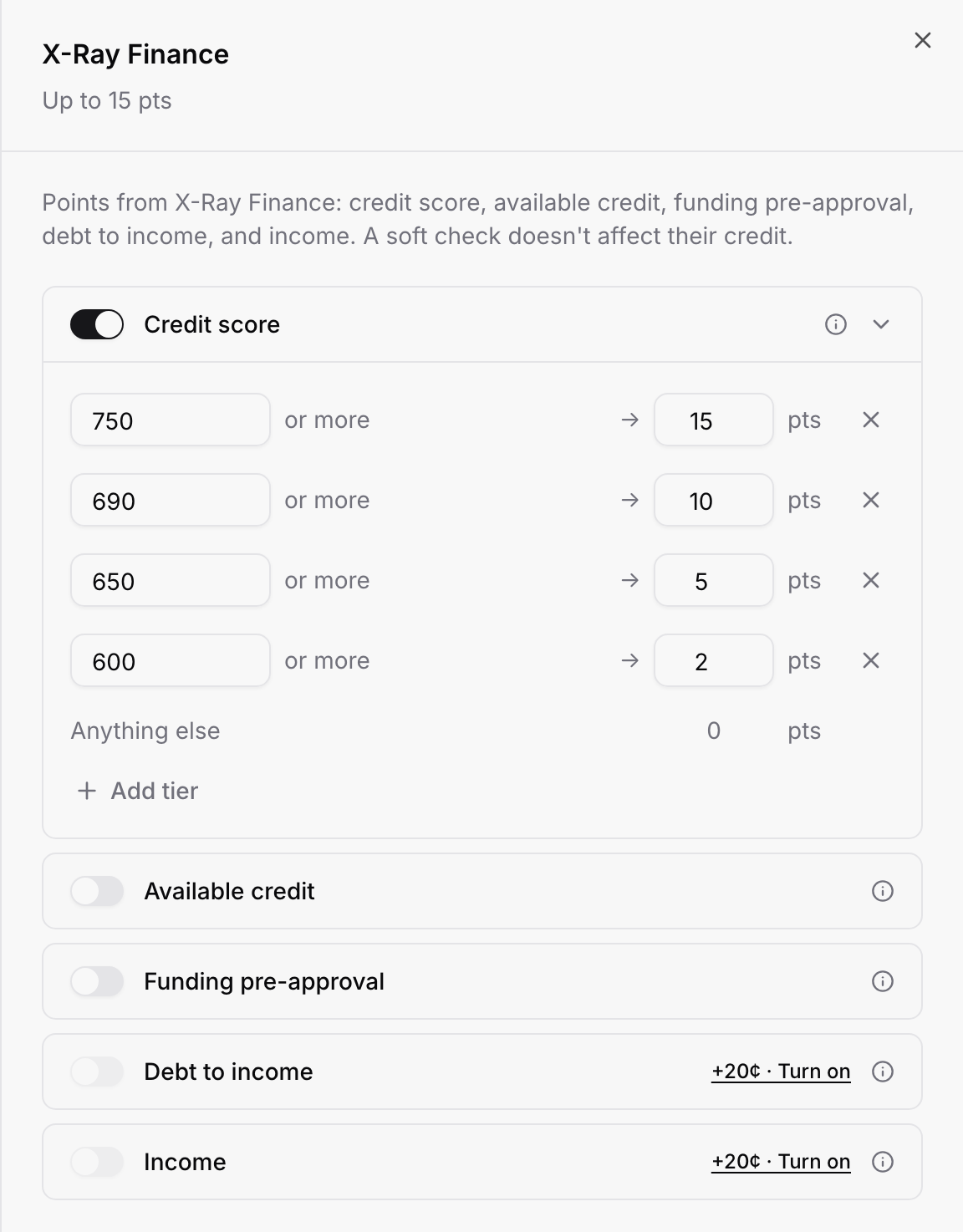
The panel lists five numbers, each with its own switch and tiers:
Credit score: Score from the soft credit check, from 300 to 850.
Available credit: The credit limit from the check. A higher limit earns more points.
Funding pre-approval: The amount they are pre-approved to fund. A higher amount earns more points.
Debt to income: Needs the add-on. Lower is better, so its tiers read "or less".
Income: Needs the add-on. Estimated yearly income. A higher income earns more points.
Debt to income and Income stay locked until the debt to income and income add-on runs on the form. Select Turn on next to them to open the X-Ray panel. The price is shown there and on your plan.
If a number does not come back for a lead, it is not counted for that lead. It is left out of both the points earned and the points possible, so a missing number never counts as a zero.
Form percent. The points from the lead's answers, as a percent of the most points the form can give.
X-Ray percent. The points from the credit tiers, as a percent of the most points the numbers that came back could give.
Final score. The two percents averaged, out of 100.
For example, a lead who earns 80% on the form and 90% on X-Ray gets a final score of 85.
If no check ran, or no credit number came back, the final score is the form percent alone. The lead's score then shows the X-Ray part as Not counted, with the reason.
In Points view the totals are the answer points plus the X-Ray points, for example "100 of 112 pts". The percent is still the average of the two percents, so do not work it out by dividing those points.
On a form scored on X-Ray Finance, the check also runs when the lead leaves the last of the Name, Email or Phone questions, so the credit result is ready when the ending is picked. The button reads Checking... while it waits.
An ending's score range works as a percent of 100 once X-Ray scoring is on. Open an ending's Score Range box. It is labeled out of 100 and the ending shows its range as, for example, 75% to 100%. The boxes accept 0 to 100.
If some endings already had ranges set in answer points, the Scoring header shows a notice: "Endings now use the final score, out of 100. 2 endings have ranges set in answer points." Choose one:
Convert to out of 100: your ranges are rescaled to the same share of the form's maximum points. For example Hot 15 to 20, Warm 8 to 14 and Cold 0 to 7 on a 20 point form become 75 to 100, 40 to 74 and 0 to 39. A range that starts above the form's maximum points could never be reached, so Convert removes it: that ending then has no score range, and Logic or the default ending can still send leads there. A message tells you how many ranges were removed. After Convert, every range is between 0 and 100. The button is disabled while the form has no answer points to convert by.
Keep as is: the numbers stay as typed, and from now on count as percents.
If you chose Keep as is, a range still set above 100 shows "Ranges are out of 100 now. Update this one."
If a lead submits before their credit check has finished, the ending is picked on the form percent alone. The saved final score updates when the check ends.
Logic rules that send someone to an ending take priority over their score. Scoring only picks the ending when no Logic rule does. If you switch X-Ray scoring off later, ranges are read as answer points again. The numbers themselves do not change.
In the Scoring tab, select the gear icon (Scoring Settings). A CRM integration must be connected on the form.
Switch on Final score (%) to send the final score out of 100, or Final score (points) to send answer points plus X-Ray Finance points.
Pick a custom field for each one you switched on.
These fields are separate from Pass Score to CRM, which sends the answer score. The final score is sent once it is final, so it can arrive a little after the contact when a check is still running. If a lead has no final percent, the percent field is left empty.
Contacts: the Score column shows each contact's newest finished submission. Select it to open the Lead score dialog.
Submissions: the Lead Score column and the Score line in a submission's details open the same dialog.
Contact page: each submission's score opens the dialog too.
Exports: CSV exports from these lists end with a Final score column.
The Lead score dialog shows three tiles: Form score, X-Ray Finance and Final score. Below them it lists each question under How they scored, and an X-Ray Finance section with each number, its tier and its points, for example "760 is in the 750 or more tier." If a number is missing it says "No credit score came back, so it isn't counted." If the lead was scored from an earlier check, it says "From their credit check on" and the date.
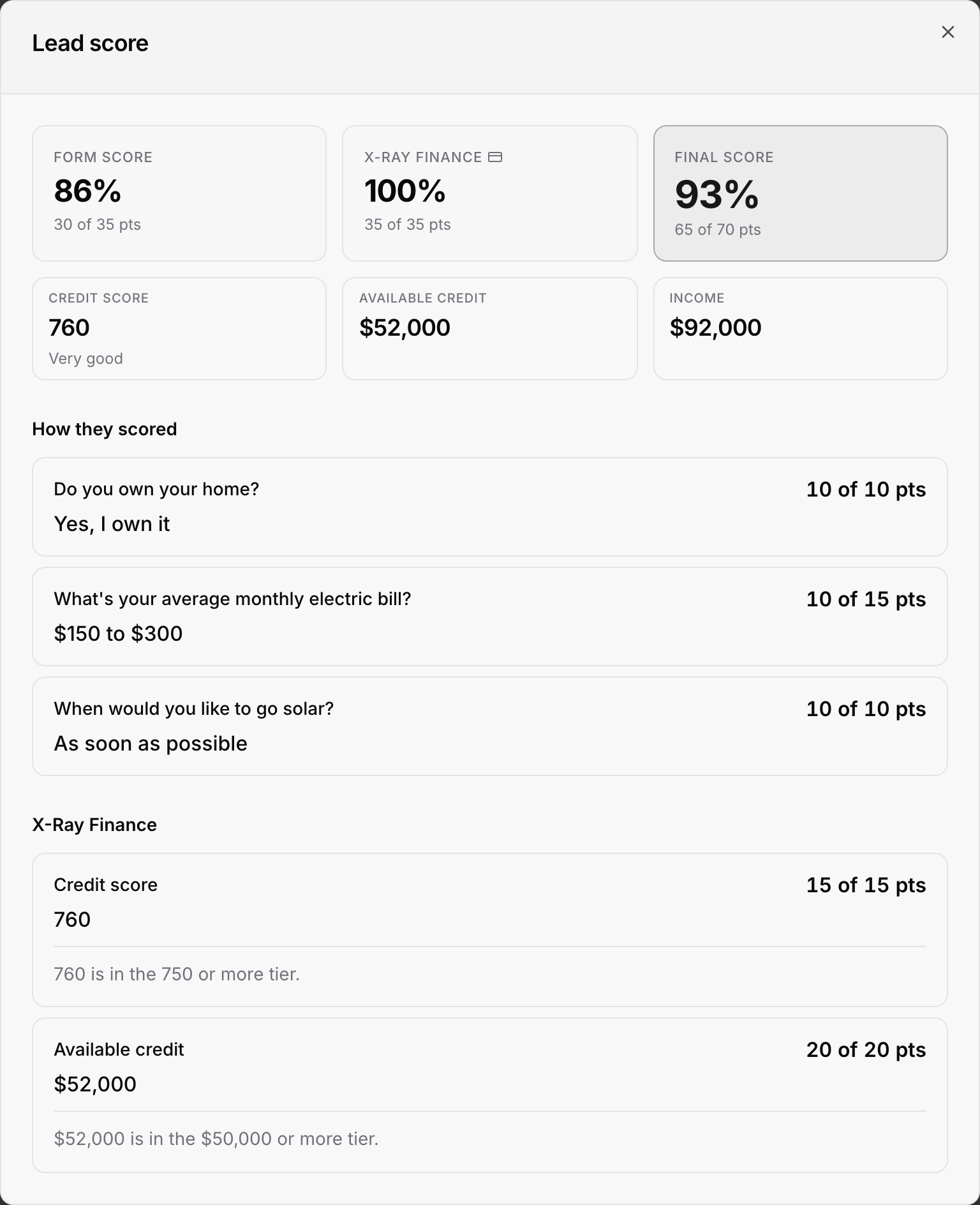
On Contacts, select the gear (Contact list settings), then Show score as, and choose Percentage or Points.
Percentage shows 87%, with the points under it in the dialog.
Points shows the points with the maximum, with "out of 100" under it in the dialog.
The choice is saved in your browser and applies to Contacts, Submissions, the contact page and the dialog. If you never choose, accounts with an X-Ray plan see Percentage and others see Points.
While a lead's credit check is still running, their score shows a Pending badge, and exports read (Pending) after the number. In the dialog the X-Ray Finance tile reads Pending with "The credit check is still running." The final score updates by itself when the check ends. If the check ends without a result, the tile reads Not counted and explains why.
Checks are charged only when a result comes back. See X-Ray Plans, Wallet, and Top-Ups.
A lead checked in the last 14 days is scored from that earlier check instead of a new one.
A lead who did not agree to the lookup, or opted out, gets no X-Ray part. See X-Ray, Consent, and Your Visitors' Privacy Choices.
Changing your tiers affects new scores. Saved scores keep the tiers they were scored with.

