Connecting GoHighLevel is what lets ROASForm push leads and their answers into your CRM, add tags, book calls on your GoHighLevel calendars, and attach uploaded files. It takes about a minute and is done once per subaccount.
One to one. Each ROASForm subaccount connects to exactly one GoHighLevel sub-account (location). If you manage several clients, create one ROASForm subaccount per client and connect each to its own location; the Agency plan lets you create additional subaccounts.
You need a GoHighLevel login with access to that location. GoHighLevel asks you to sign in during the connection. If you normally sign in to GoHighLevel with Google and have no password set, see Can't Connect GHL Because You Use Google Sign-In? first.
In ROASForm, make sure you are in the right subaccount, then open Connect > Integrations.
On the GoHighLevel card, click Connect. You are sent to GoHighLevel.
Sign in to GoHighLevel if asked, then choose the sub-account (location) you want this ROASForm subaccount to sync with, and allow the requested permissions.
You are brought back to ROASForm. The card now shows a green Connected badge, and expanding it shows the location name, its Location ID, and when it was connected.
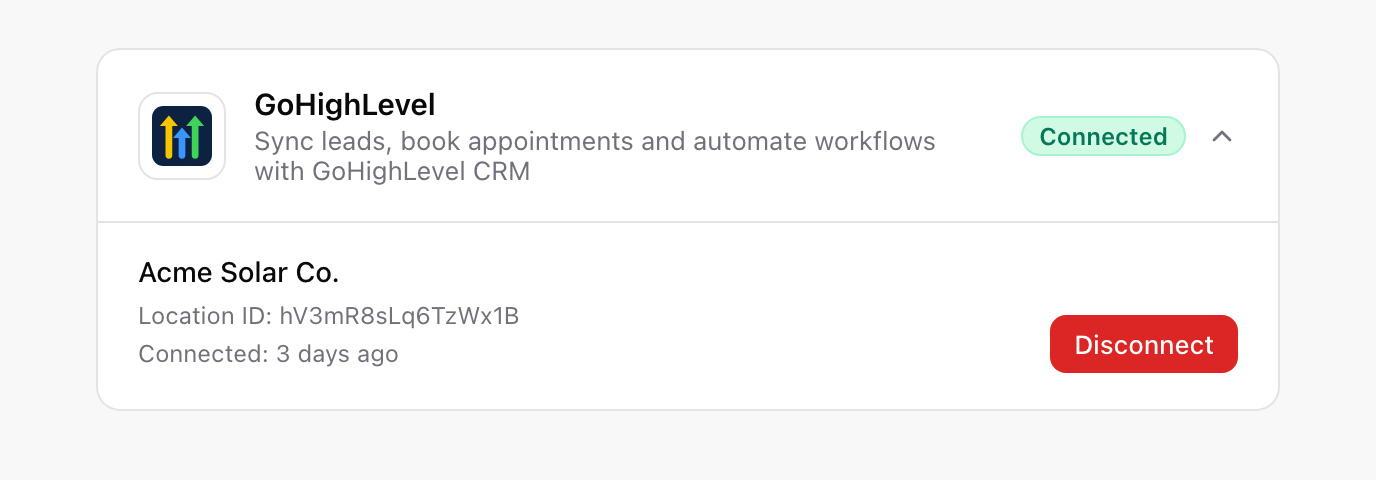
Picked the wrong location? Click Manage, then Disconnect, and connect again choosing the right location.
The connection is per subaccount, but syncing is per form. Open a form, go to the gear icon > Settings > Integrations tab and set Integration to GoHighLevel. This also turns on Partial Submissions with the default abandon tag. New forms you create afterwards have GoHighLevel selected already. From here you can:
map answers to contact fields: Mapping Form Answers to GoHighLevel Custom Fields
tag contacts and trigger workflows: How ROASForm Tags Work with GoHighLevel
let visitors book on your calendars: GoHighLevel Calendar Integration
capture people who don't finish: Partial Submissions and Abandon Tags
The GoHighLevel card shows an amber banner in two situations:
"Authentication expired. Please reconnect your GHL account." GoHighLevel stopped accepting ROASForm's access, usually because the app was removed in GoHighLevel, permissions were reset, or the account changed. Syncing and bookings are paused until you click Connect on the card and sign in again; leads that arrived in the meantime can be resent with the sync button on their rows (see Troubleshooting: Leads Not Showing Up in GoHighLevel).
"ROASForm needs new GoHighLevel permissions to sync file uploads to custom fields." Everything keeps working; click Reconnect in the banner once, only if you map File Upload questions to GoHighLevel fields.
Reconnecting runs the same Connect flow and keeps all your form settings and mappings.
Expand the GoHighLevel card and click Disconnect. A confirmation explains what happens:
Lead syncing to GoHighLevel stops.
Calendar bookings through GoHighLevel stop working; calendar endings stay in your forms, and visitors cannot book until you reconnect.
Existing submissions and bookings are not affected, and nothing is removed from GoHighLevel.
To switch a subaccount to a different GoHighLevel location, click Manage, then Disconnect, then connect again and pick the new location.
Submit a test lead on a published form that has GoHighLevel selected, then look at the row's sync badge in the Submissions tab (it should read Synced) and find the contact in the connected location. If anything is off, the Logs tab in Connect > Integrations shows exactly what was sent and what GoHighLevel answered.

