A credit result that stays inside ROASForm does not help the person making the call. X-Ray > Settings decides how much of each result reaches GoHighLevel, and in what shape. The final score has its own setting in the form builder.
GoHighLevel has to be connected to the subaccount. See How to Connect GoHighLevel to ROASForm.
X-Ray Settings only exist inside a subaccount, because each subaccount has its own CRM. In the agency view the page says "Select a subaccount from the sidebar to configure its X-Ray settings."
The settings are shared by every X-Ray rule in the subaccount, so two rules never disagree about what gets written.
Open X-Ray > Settings and pick CRM in the left menu.
In the CRM Integration card, open the Integration list and choose GoHighLevel.
Turn on what you want, then press Save changes.
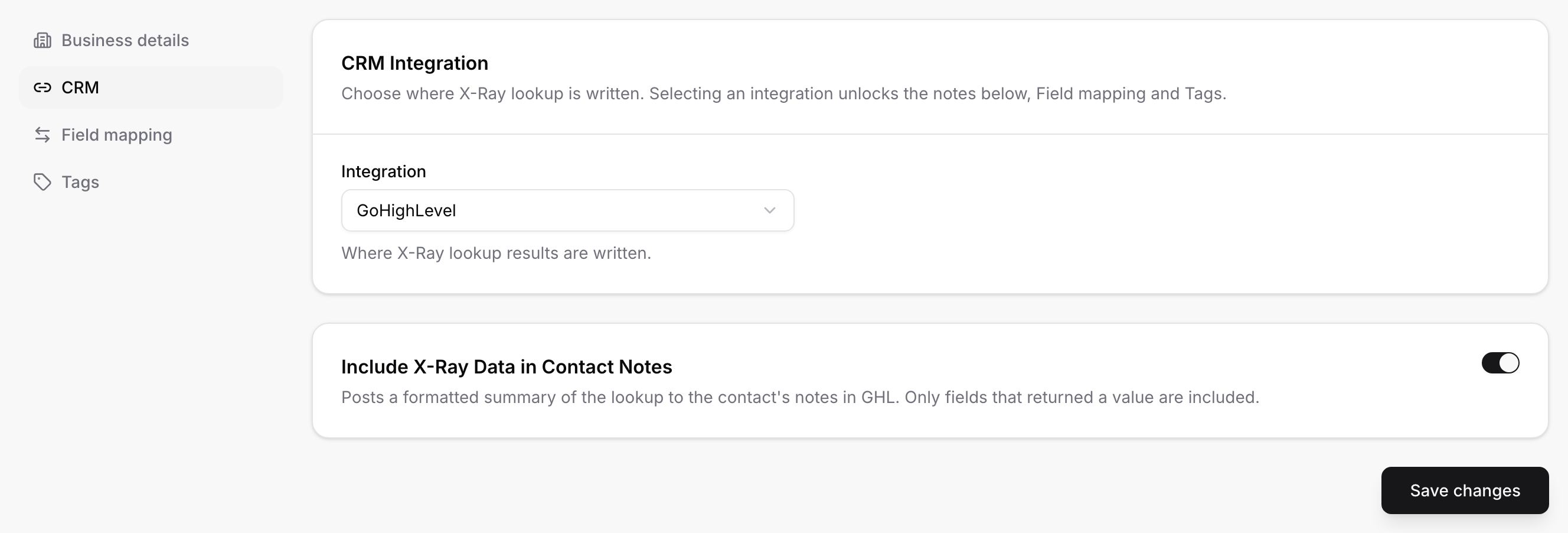
Until an integration is chosen, the switches for notes, field mapping and tags stay off, and hovering one tells you why. If GoHighLevel is not connected, the list shows GoHighLevel (Not connected) and the card links to Connect one. The other CRMs in the list read Coming Soon.
Choosing None turns every X-Ray output off and saves straight away.
Save changes sits at the bottom of the CRM, Field mapping and Tags pages. It saves all three together, so you can move between them before saving.
On the CRM page, turn on Include X-Ray Data in Contact Notes. After each result, X-Ray posts a note on the GoHighLevel contact. The note starts with a line reading --- X-Ray Finance ---, shows the date, and lists the fields that came back (credit score, pre-qualification and so on), followed by any financing offers.
Notes need no mapping and no custom fields, and whoever opens the contact can read them. Mapping is better when you want to filter, sort or automate on a value.
Go to X-Ray > Settings > Field mapping.
Turn on CRM Mapping.
Next to each X-Ray field, open the list that says Unmapped and choose a GoHighLevel field. Fields are grouped under Standard fields and Custom fields.
Press Save changes.
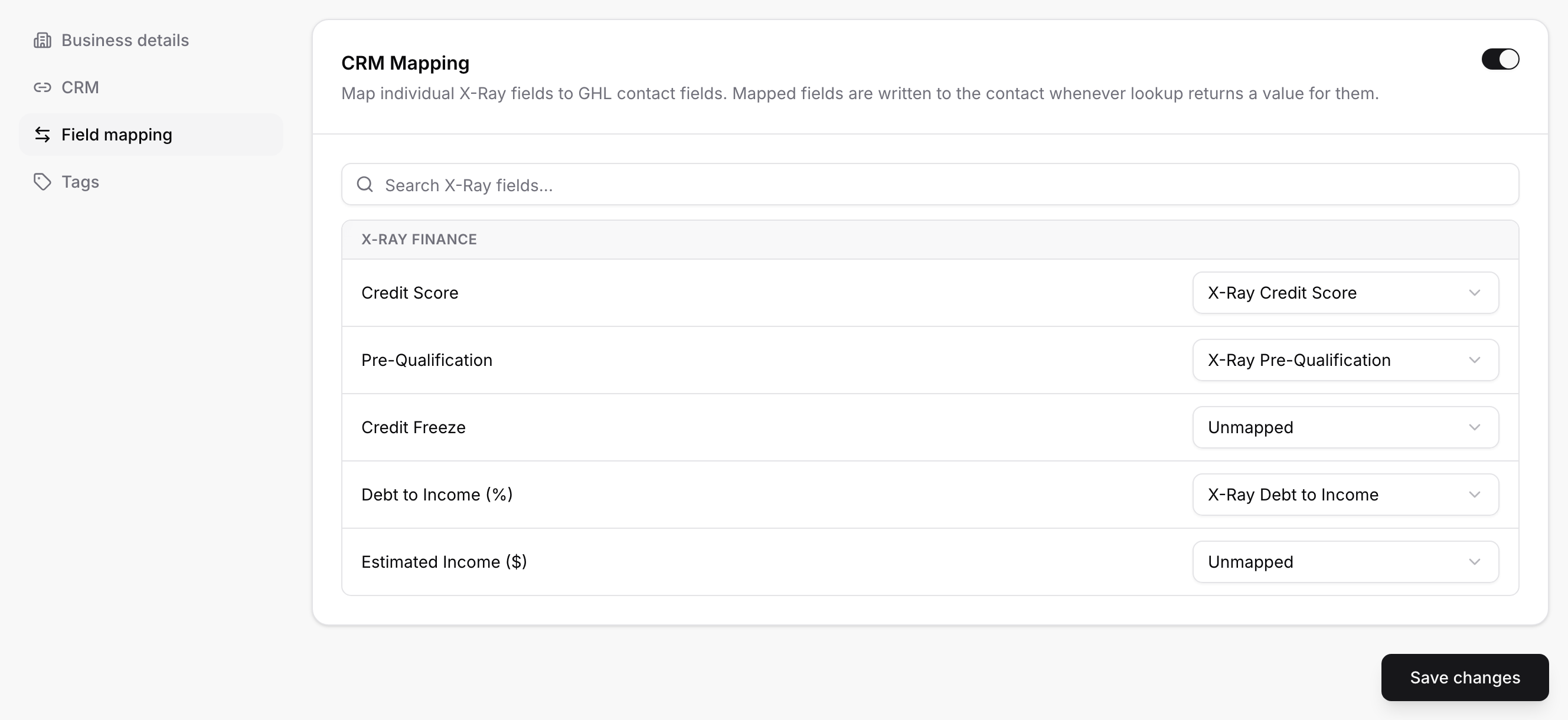
The page lists the X-Ray Finance fields you can map:
Credit Score
Pre-Qualification
Credit Freeze
Debt to Income (%)
Estimated Income ($)
The last two only come back when the debt to income and income add-on runs for the form. Use Search X-Ray fields... to narrow the list.
Two rules before you spend time here:
Only fields that returned a value are written. A mapped field that came back empty writes nothing. It never blanks what is already on the contact.
The GoHighLevel custom field must exist first. Create it in GoHighLevel, then pick it here. The mapping works the same way as for form answers: see Mapping Form Answers to GoHighLevel Custom Fields.
Go to X-Ray > Settings > Tags.
Turn on CRM Tags. The first time you do, the tag xray_completed is added for you.
To add your own, type a name (up to 32 characters) and press Enter or Add. Remove a tag with the x on it.
Press Save changes.
How each tag behaves:
xray_completed is applied when the check returned a result. If nothing came back, it is not applied.
Tags you add yourself are applied to the contact every time X-Ray sends a result to GoHighLevel.
Tags are a good trigger for a GoHighLevel automation. For how tags work with GoHighLevel in general, see How Tags Work with GoHighLevel.
After the form is submitted. The check runs in the background. As soon as it returns a result, the CRM sync starts. You do not need to wait for the form's normal CRM sync.
Right after a check during the form. If your form uses Routing Leads with X-Ray Finance in Logic, the check runs when the lead moves past that step, and the result is sent to GoHighLevel right away, before the form is even finished.
No result, nothing sent. If a check is skipped or returns no result, no note, no tags and no fields are written.
No contact in GoHighLevel yet? X-Ray adds the contact first (name, email and phone), then writes the result.
A failed sync is tried again automatically a few times before it is marked as failed.
The final score is not set here. It lives in the form builder, because it belongs to the form.
Open the form and go to the Scoring tab.
Click the gear icon to open Scoring Settings.
Under Pass Score to CRM, find Final score (%) and Final score (points). Turn on the ones you want and choose a GoHighLevel custom field for each. The field needs to be a number or text field.
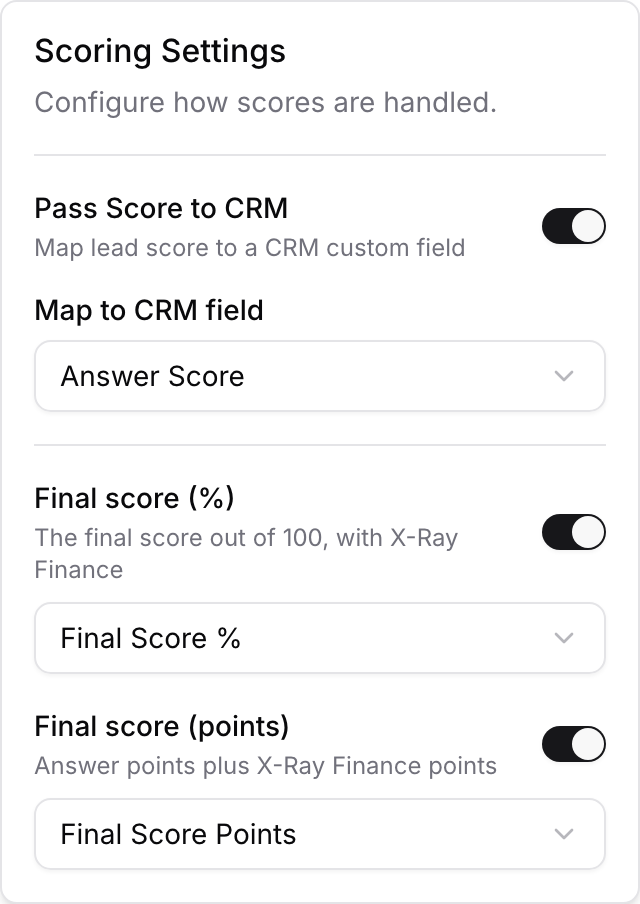
Final score (%) is the final score out of 100, with X-Ray Finance. Final score (points) is answer points plus X-Ray Finance points. These two rows appear once X-Ray scoring is on for the form, and the form needs a connected CRM. Until then the gear shows "Connect a CRM integration in the Settings tab to pass scores."
The score is sent when it is final, which means after the credit check has ended. If the contact is not in GoHighLevel yet, ROASForm keeps trying for a while. Only these fields are touched: no tags, no notes. How the score is built is in Using X-Ray Finance in Lead Scoring.
Open X-Ray > History > Lookup History. The X-Ray CRM Sync column shows what happened to each result.
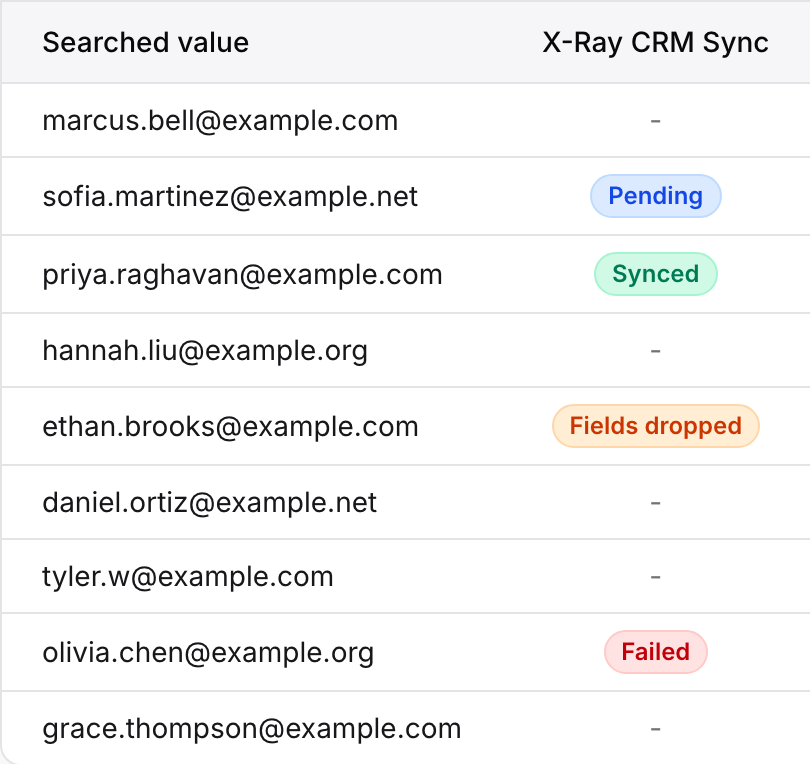
Synced: written successfully.
Pending: on its way.
Fields dropped: the contact was written, but some mapped fields were not accepted. This almost always means a mapped custom field was deleted in GoHighLevel. Re-map it under X-Ray > Settings > Field mapping.
Failed: the sync did not work. Hover the badge for the reason.
Not Synced: this lookup was never pushed to your CRM and will not sync on its own. A dash means nothing was sent for that row.
To send it again, use the round arrow button in the Actions column. Its tooltip reads Sync to CRM. The button is greyed out with Select a CRM in X-Ray settings to sync if no CRM is chosen, and No lookup to sync if the row has no result. You can also click a completed row to open its details, where X-Ray CRM sync shows a Sync now button when the status is Failed or Fields dropped.
If every sync fails, not just one, the problem is usually the connection itself. See Troubleshooting: Leads Not Showing Up in GoHighLevel.
Syncing again posts the note again. GoHighLevel cannot tell that two notes are the same, so a manual sync can leave two notes on the contact. Use it to recover a failed or partial sync, not as a refresh.
A re-sync sends everything. Notes, mapped fields and tags are all written again.
A changed mapping applies to results sent after the change. Contacts already in GoHighLevel only change if you sync them again.
To see exactly what was sent for one person, open their contact and use the Integration logs tab. See How to Use Integration Logs.

