Your account settings are personal to you, not to the subaccount you are working in. Click your name in the top right corner, then Profile Settings.
Careful: Settings in the sidebar is a different page, the subaccount's settings, which today holds the Blocked List. Billing has its own page in the same menu as this one: click your name, then Billing, if your role can manage billing. See Changing or Canceling Your Plan.
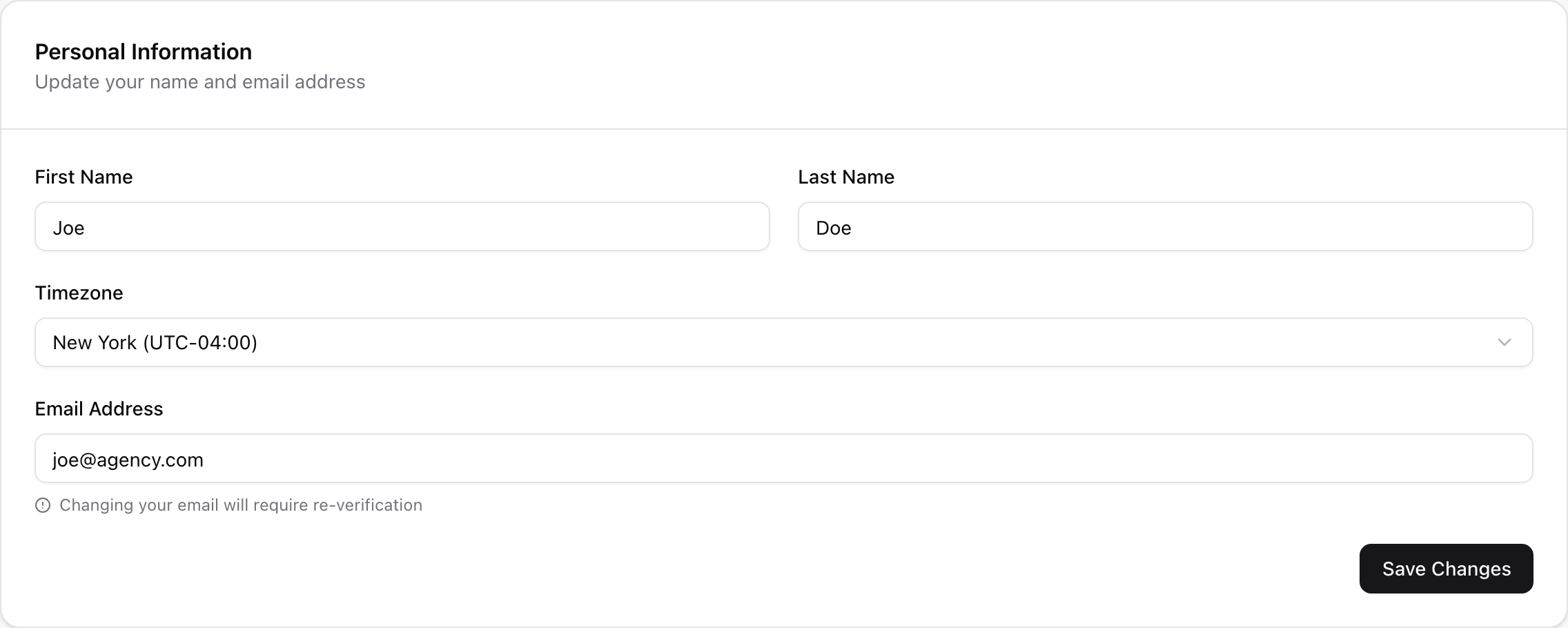
First Name and Last Name: how you appear to your team.
Timezone: this one matters more than it looks. Every date and time in the dashboard is shown in this timezone, including submission times and appointment slots. If your appointments look an hour out, this is the first thing to check. The list is grouped into Global, Americas, Europe and Africa, and Asia and Pacific, and each option shows its current offset, so it follows daylight saving on its own.
Email Address: the address you sign in with. Changing it sends a verification email to the new address, and you need to click that link before the change takes effect.
Click Save Changes when you are done. Nothing on this card saves until you do, the timezone included.
If your email field is greyed out with the note that you need to set a password first, you created your account with Google or Slack. Set a password lower down the page and the field unlocks.
Enter your Current Password, then your new one twice. New passwords must be at least 8 characters. Each field has an eye icon if you want to check what you typed.
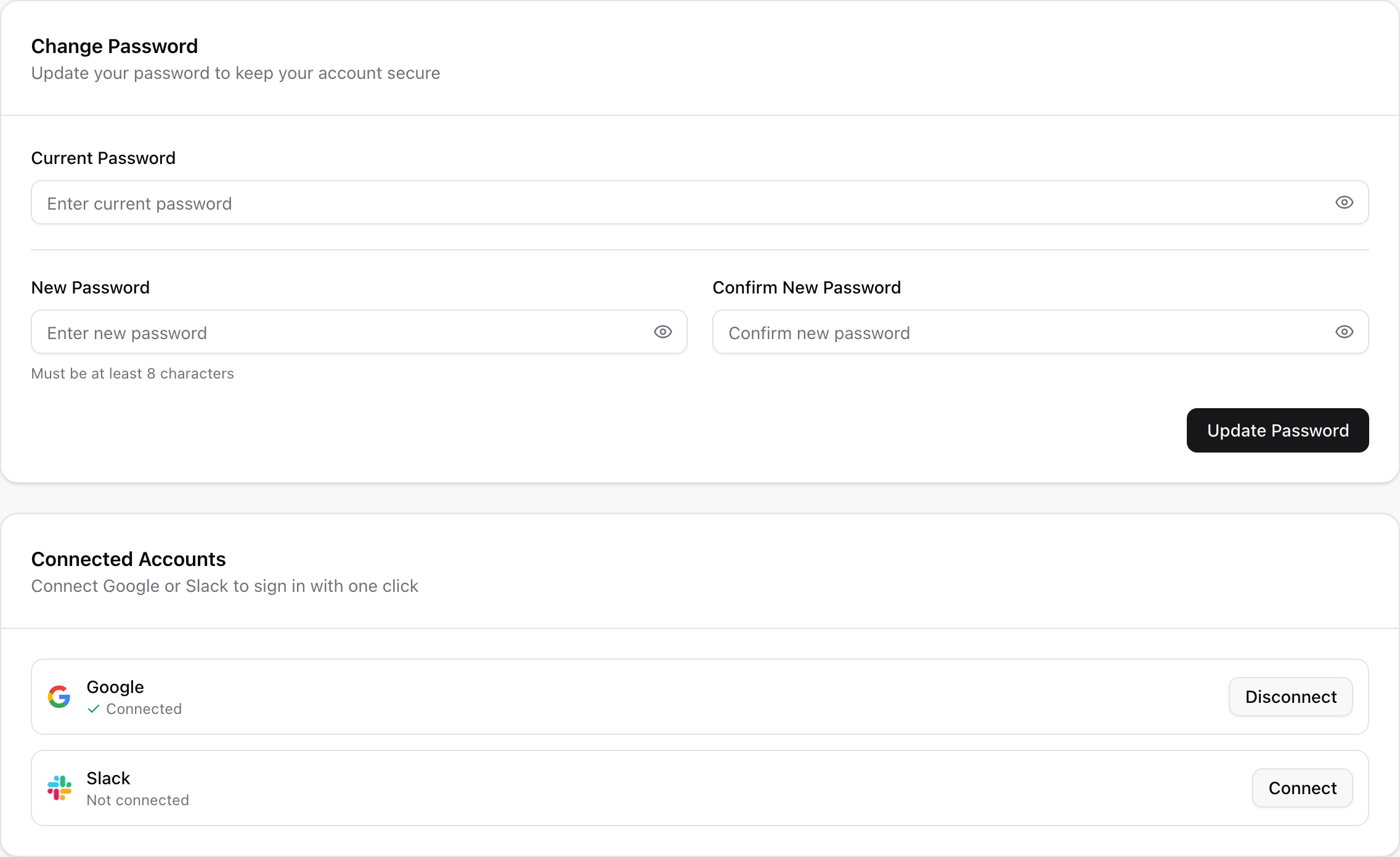
If you signed up with Google or Slack and have never had a password, this card reads Set Password instead and there is no current password to enter. Setting one does not remove your Google or Slack sign-in, it just adds email and password as a second way in, and it unlocks the email field above.
Changing or setting your password signs you out on your other devices and disconnects every connected AI app (see Connected AI apps below). Reconnect the ones you still use.
Forgotten your password and cannot sign in at all? Use Forgot password? on the sign-in page instead, since this card needs you to be signed in already.
Shows Google and Slack, each marked Connected or Not connected.
Connect sends you to that provider and brings you back here when it is done.
Disconnect removes it right away, with no confirmation step, so click carefully.
You cannot disconnect your only way of signing in. If Google is your sole sign-in method the Disconnect button stays disabled until you set a password.
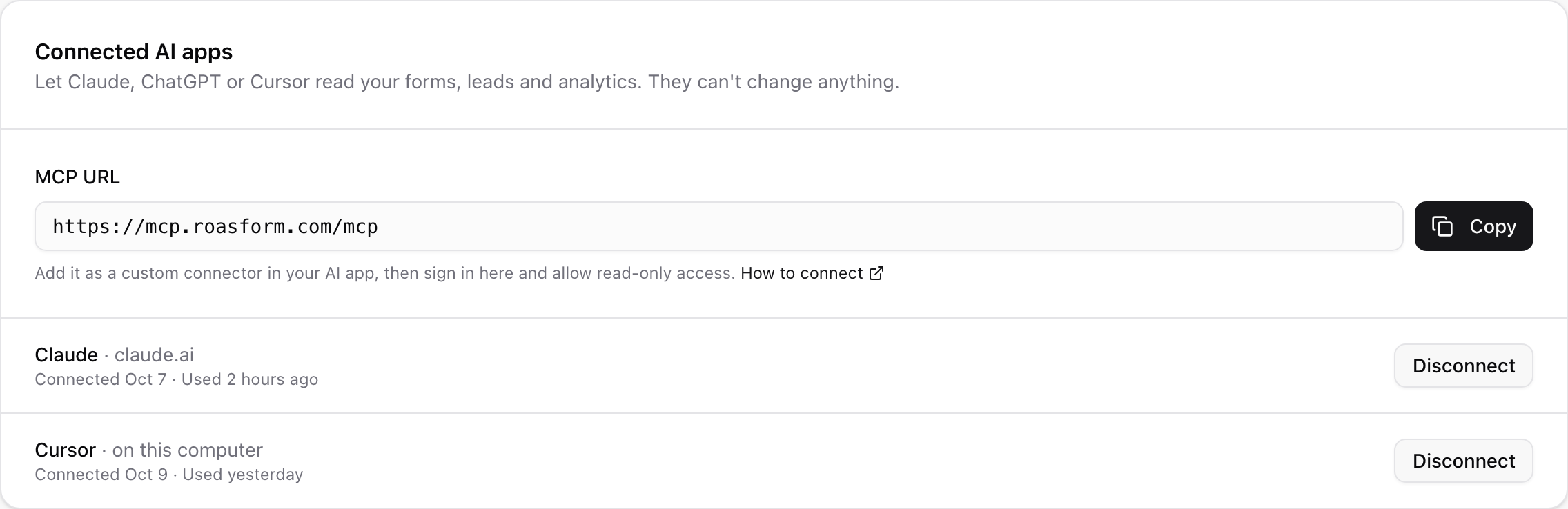
Lets AI apps like Claude, ChatGPT or Cursor read your forms, leads and analytics. They can't change anything.
Copy the MCP URL and add it to your AI app to connect it.
Each connected app is listed with when you connected it and when it was last used.
Disconnect ends an app's access straight away.
The step-by-step guide is in Connect ROASForm to Claude, ChatGPT and Other AI Apps. To disconnect an app or fix a connection problem, see Manage and Disconnect AI Apps.
These settings follow you, not the subaccount. Changing your timezone changes how dates look in every subaccount you have access to, and changes nothing for your teammates.
Changing your email here changes how you sign in. It does not change the address that receives lead notifications from a form.
Your name is what teammates see on the Team page, so keep it recognisable.

