There are two steps. You subscribe to X-Ray once for your whole agency. Then you turn X-Ray Finance on for each form you want it to run on.
Only the agency owner can subscribe. The owner is the Super Admin, the account that created the agency. Anyone else sees a disabled Subscribe to X-Ray button with the message "Contact your agency owner to enable X-Ray".
You need a card on file. If you do not have one, you are asked to add it when you subscribe.
X-Ray is billed separately from your ROASForm plan. See X-Ray Plans, Wallet, and Top-Ups.
You can start from any of these places. They all lead to the same plan screen.
X-Ray in the sidebar. Until you subscribe, it opens the subscribe screen: "Qualify and route leads on credit, income, and more".
The X-Ray button next to the form name in the form builder. It only appears on a saved form.
Billing, on the X-Ray card, with Get Started. To open Billing, click your name in the top right corner, then Billing.
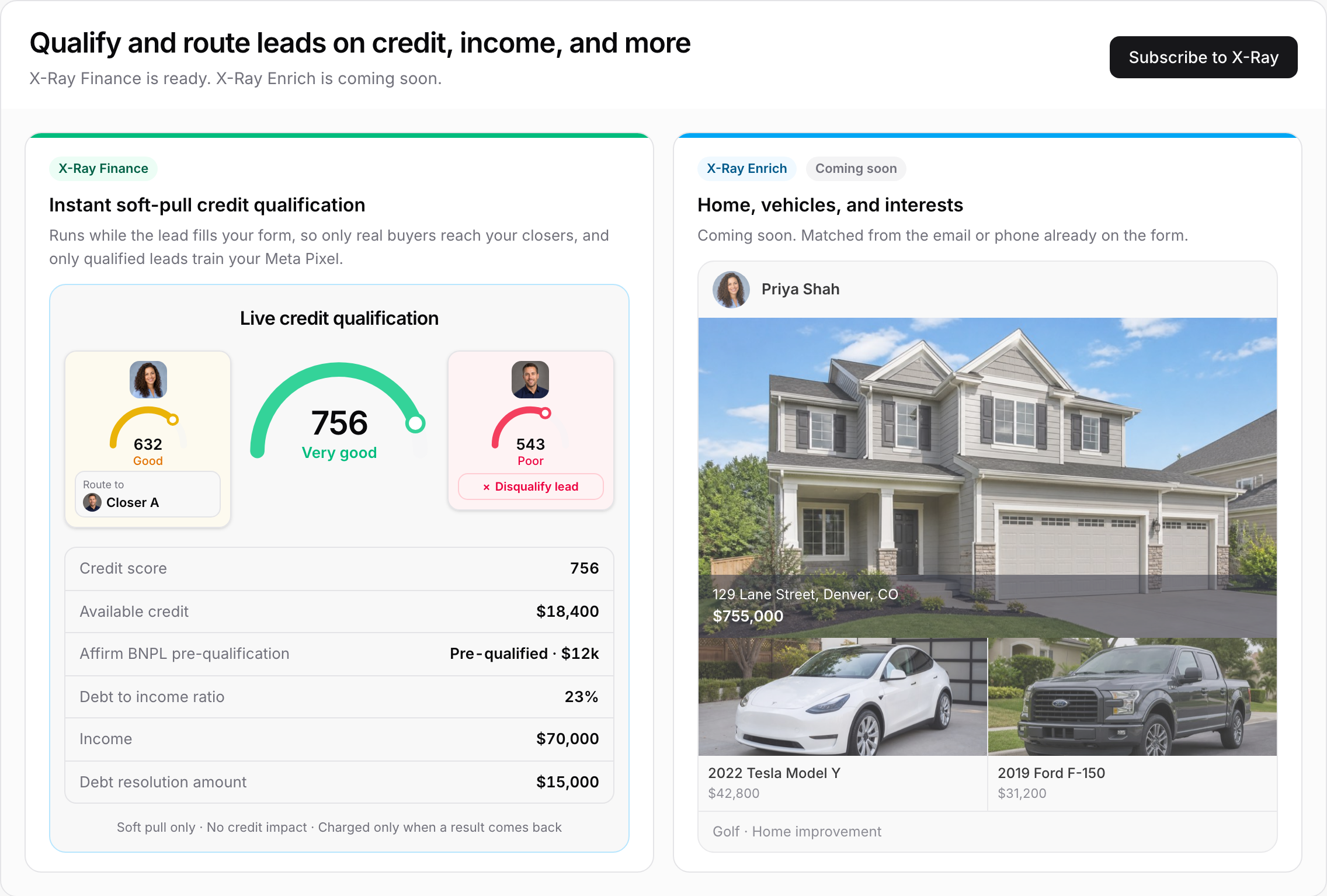
The subscribe screen says "X-Ray Finance is ready. X-Ray Enrich is coming soon." X-Ray Enrich is not available to buy yet.
Click Subscribe to X-Ray. The plan screen shows the monthly fee and the per-lead price on your plan, and what each check returns:
Credit score, Available credit and Affirm BNPL pre-qualification
An optional extra: Debt to income ratio, Income and Debt resolution amount
There is one X-Ray plan: a monthly fee, plus a prepaid wallet that is charged per lead. You are charged only when a result comes back.
Under Auto top-up you set how your wallet is filled:
When the balance drops below: starts at $20.
Add this much: starts at $100.
Most we can charge for top-ups in a month: starts at $500.
The first "Add this much" amount is charged today, and the same amount is added again whenever the balance runs low. You can change all three later. See X-Ray Plans, Wallet, and Top-Ups.
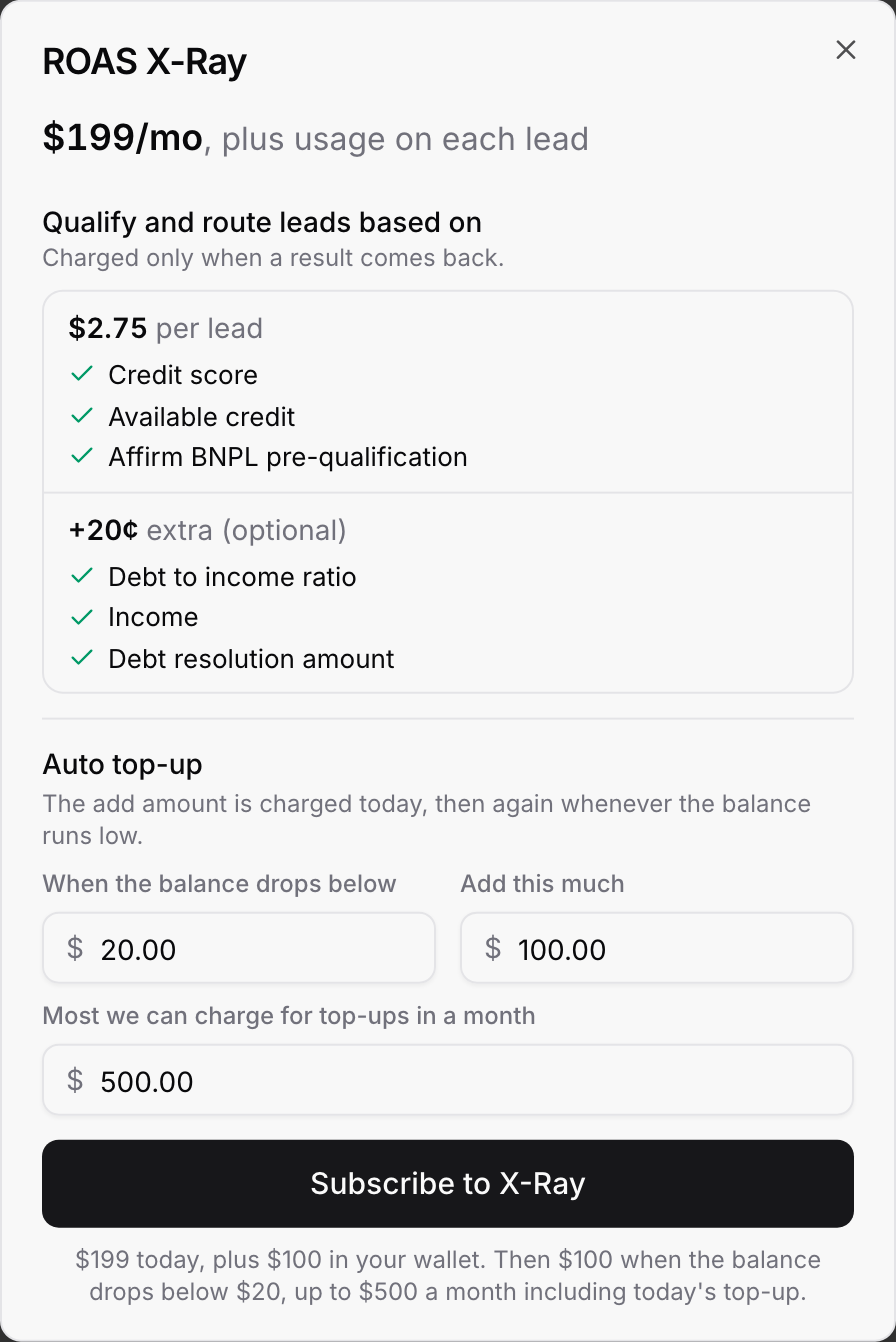
Click Subscribe to X-Ray on this screen to continue. Nothing is charged yet.
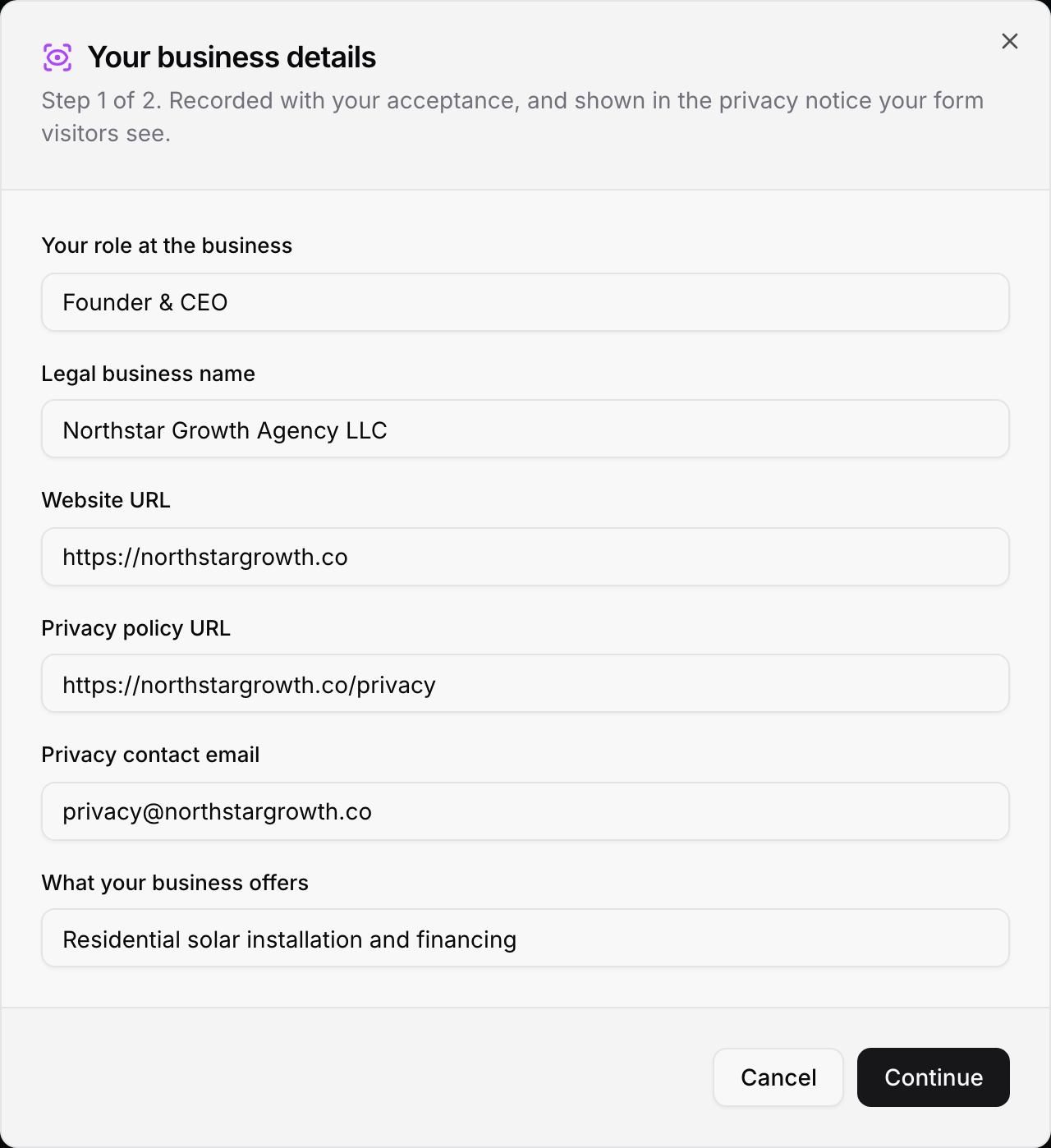
The first time you subscribe, a two-step terms screen opens. Step 1 is Your business details.
"Step 1 of 2. Recorded with your acceptance, and shown in the privacy notice your form visitors see."
Fill in:
Your role at the business (for example Owner, Director or Authorised signatory)
Legal business name
Website URL
Privacy policy URL (your own published policy, as a live https link)
Privacy contact email
What your business offers (for example "Residential solar installation and financing")
All six are required. Click Continue. Your details are saved at this point.
These details go into the Privacy Notice that your form visitors read, so check them for typos.
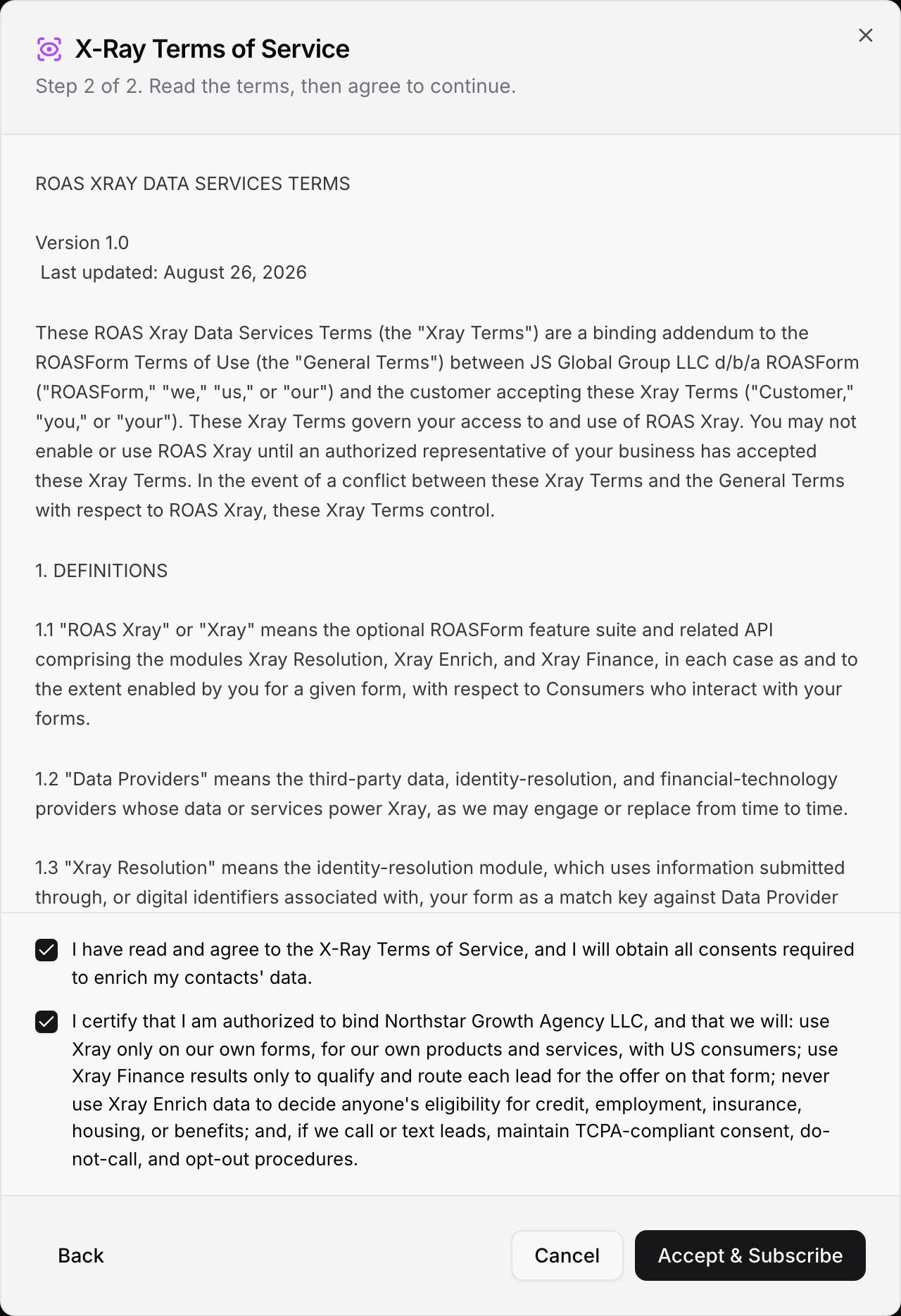
Step 2 is X-Ray Terms of Service.
Scroll to the bottom of the terms. The checkboxes stay switched off until you do.
Tick the first box, which confirms you agree to the terms and will get the consents needed from your contacts.
Tick the second box, a certification that names your business. In it you confirm you can bind your business, will use X-Ray only on your own forms for your own products and services with US consumers, and will use X-Ray Finance results only to qualify and route each lead for the offer on that form.
Click Accept & Subscribe.
Use Back to change your details, or Cancel to leave. If you leave part-way, what you filled in is saved, and the X-Ray page reminds you: "Finish adding your business details to start using X-Ray."
When you click Accept & Subscribe:
Your acceptance is recorded and the subscription starts.
Your card is charged the monthly fee and the first wallet top-up.
Auto-recharge is switched on with the numbers you chose.
You see "X-Ray Finance is on", and the X-Ray pages (Overview, Rules, History, Settings) unlock.
If the card is declined, the subscription does not start and you see the card's message. If the plan starts but the first top-up fails, X-Ray is on and the screen offers an Add $ to your wallet button so you can retry the top-up.
Once you are subscribed, turn X-Ray Finance on for each form that should check leads.
Open the form in the builder. Save it first if it is new.
Click the X-Ray button next to the form name.
In the X-Ray window ("Run X-Ray Finance on this form's leads."), switch on X-Ray Finance. The price per lead with a result is shown next to it.
Optional: switch on Debt to income and income to add the extra to the check. It only shows if your plan includes it.
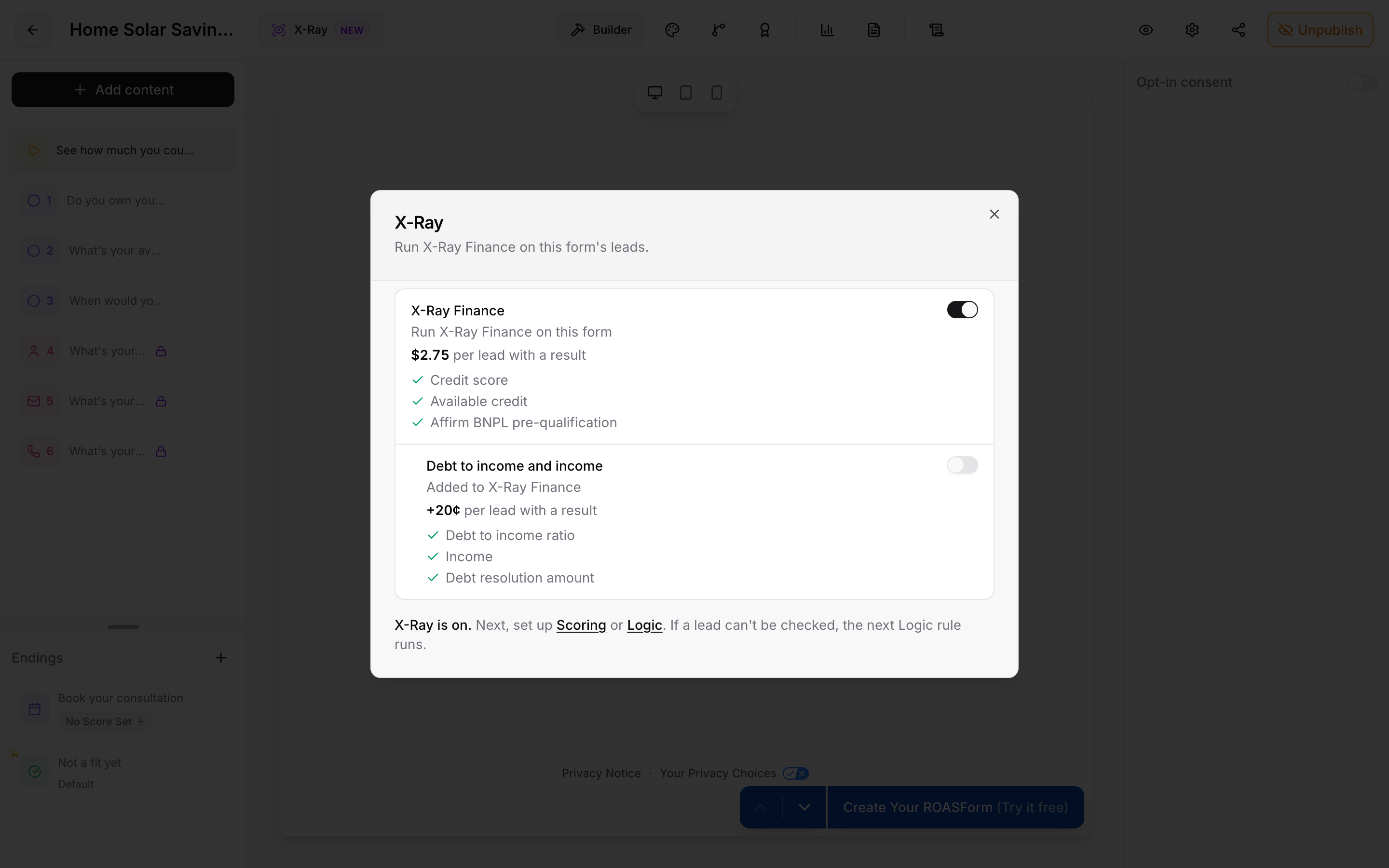
When you turn it on:
The builder adds the questions X-Ray needs. X-Ray Finance reads the lead's name, email and phone, so the form must ask for a required Name, Email and Phone. Missing ones are added, optional ones are made required, and hidden Contact Card fields are shown. You see a message such as "Added a phone question for X-Ray Finance." A Contact Card counts.
Those questions are locked while X-Ray Finance runs. You cannot delete, hide, make optional or change the type of them: "X-Ray Finance needs a required Name question. Turn X-Ray Finance off to remove it."
The Name question asks for a full name on the live form, because the check needs a first and last name.
Publishing is blocked if one is missing: "X-Ray Finance needs required Name, Email and Phone questions."
A rule is created for the form. It runs on Lead Captured, when the form is submitted. You can see and change it under X-Ray > Rules. See Auto-Lookup Rules.
Underneath, the window says "X-Ray is on. Next, set up Scoring or Logic." Use those links to open the form's tabs:
Send leads to different steps by their result: Routing Leads with X-Ray Finance in Logic
Add the result to your lead score: Using X-Ray Finance in Lead Scoring
If a lead cannot be checked, the next Logic rule runs.
Turn the switch off at any time to stop X-Ray Finance on that form. Turning it off is never blocked.
"Finish X-Ray setup to turn this on" lists what is missing, such as a business detail or accepting the current terms. Click Finish setup. If you belong to a subaccount only, you see "Ask your agency owner to finish X-Ray setup."
"A rule for all forms runs X-Ray Finance here. Change it in Rules." means a rule that covers every form already runs it. Change it under X-Ray > Rules.
"Your X-Ray subscription needs attention." means a payment failed. Update your card in Billing.
Inside a subaccount, open X-Ray > Settings > Business details. The Business profile shows the details you entered when you subscribed. Make your changes and click Save profile. Saving updates the Privacy Notice on your X-Ray forms.
Agency users can edit the business details. People who belong to a subaccount only see them read-only: "Your agency owner manages these business details."
When X-Ray Finance runs in the subaccount, two more fields appear: How you use qualification results and a checkbox, We call or send text messages to leads. They are recorded with your terms acceptance.
If we update the X-Ray Terms of Service, agency users see a banner: "The X-Ray Terms of Service have been updated. Review and accept them to keep making changes to X-Ray." Click Review terms. Until you accept, you cannot turn X-Ray on for a form or save a rule that is switched on. Turning X-Ray off is never blocked.
You subscribe once for the whole agency. Every subaccount and form uses the same subscription and wallet.
Cancelling X-Ray does not cancel your ROASForm plan, and the other way round. See Changing or Canceling Your Plan.
Every X-Ray form shows a "Privacy Notice · Your Privacy Choices" footer. See X-Ray, Consent, and Your Visitors' Privacy Choices.
Only US phone numbers can be checked. Leads without one are skipped.

