X-Ray > History answers the two questions that come up most: what happened to this lead, and where did my money go. They live on two tabs, Lookup History and Wallet Activity.
Every check that was attempted, newest first, whether it returned a result, was skipped or failed. The list shows 25 at a time.
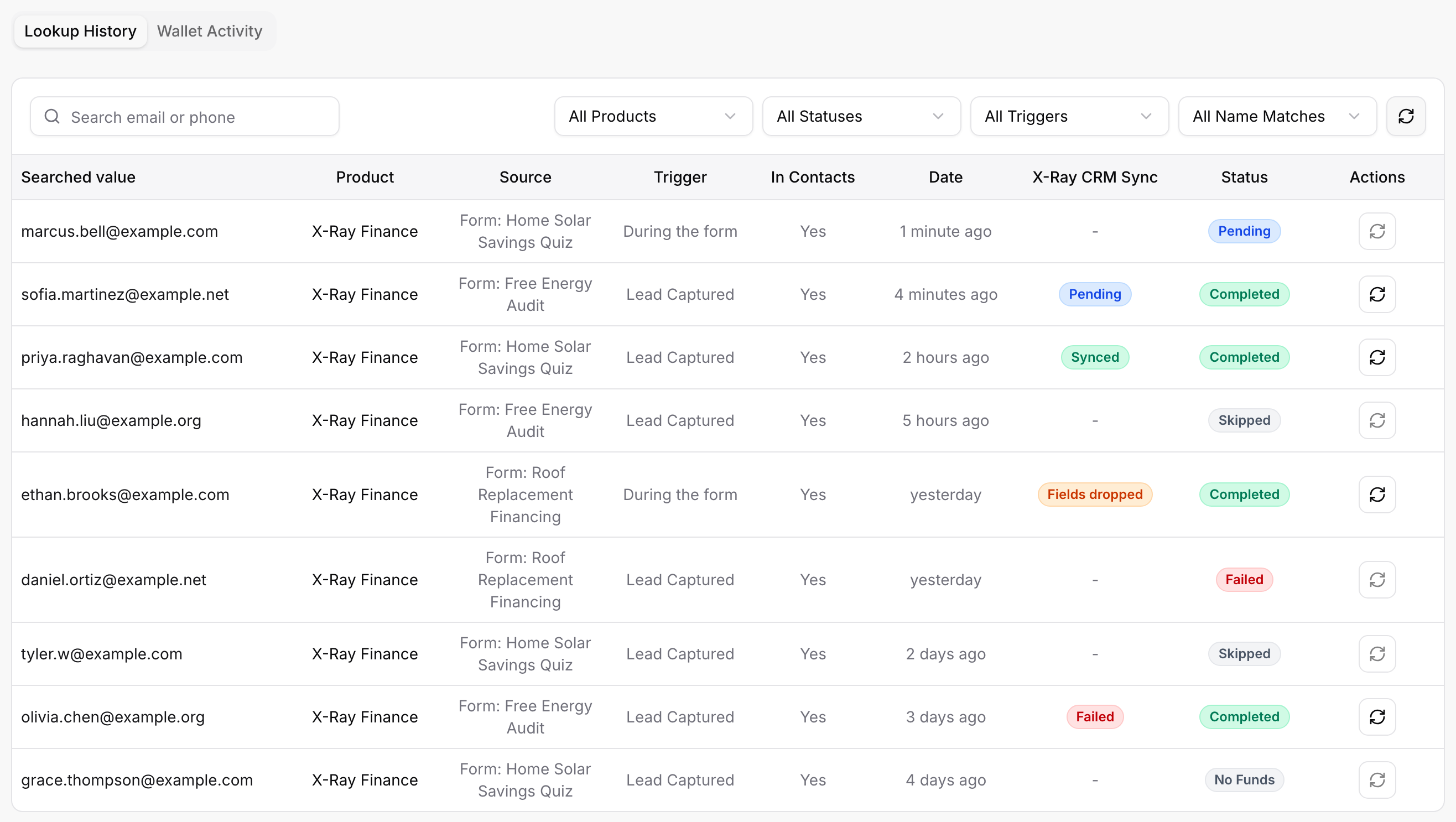
Searched value: the email or phone number the check was made for. If the person is a contact, it is a link to their contact page.
Product: the X-Ray product the row is about. For X-Ray Finance it reads X-Ray Finance.
Subaccount: only in the agency view. It shows whose lookup this is, or Agency. See Subaccounts and the Agency View.
Source: where the check came from, usually the form, written as Form: followed by the form's name.
Trigger: what started it. See the trigger labels below.
In Contacts: Yes if the person is saved as a contact, No if not.
Date: how long ago the check was made.
X-Ray CRM Sync: whether the result reached your CRM.
Status: what happened. See below.
Actions: a sync button to send the result to your CRM.
Lead Captured: the lead submitted the form.
During the form: the check ran while the visitor was still filling in the form, so a logic rule could use the result.
For X-Ray Finance, the Status column shows one of these:
Completed: the check returned a result. This is the only status that is charged.
Pending: the check has not finished yet. A check waiting for its one automatic retry also reads Pending.
Failed: the check ran but returned no result. Nothing was charged.
Skipped: the check did not run, for example because the lead was missing a name, email or US phone number, opted out, or was already checked in the last 14 days. Nothing was charged.
No Funds: your X-Ray wallet did not have enough for the check. Nothing was charged.
Hover a Failed, Skipped or No Funds status to read the reason in a sentence. For what to do about each reason, see Why an X-Ray Lookup Did Not Run.

Across the top of the list:
Search email or phone: find the checks for one person.
All Products: narrow to one product.
All Statuses: narrow to one outcome. This matches the status of the lookup as a whole. X-Ray Finance checks are recorded as Finance only, so to list them pick Finance only, then read the Status column for each outcome.
All Triggers: narrow by what started the check, using the labels above.
All Name Matches: X-Ray Finance checks do not have a name match, so this filter does not narrow them.
Refresh: re-read the list, useful while a check is still pending.
If nothing matches, the list reads No logs found.
The X-Ray CRM Sync column shows one of Synced, Pending, Failed, Fields dropped or Not Synced. Hover it for details. Not Synced means the check was never pushed to a CRM and will not sync on its own.
The sync button in Actions pushes the result to your CRM. Its tooltip tells you what it will do:
Sync to CRM: send the result now.
Add to contacts and sync to CRM: the person is not a contact yet, so syncing saves them as one first.
Select a CRM in X-Ray settings to sync: no CRM is chosen yet, so the button is disabled. Pick one under X-Ray Settings, in the CRM section.
No lookup to sync: the check has no result to send.
See Sending X-Ray Data to GoHighLevel.
Click a row whose status is Completed. Rows with any other status do not open.
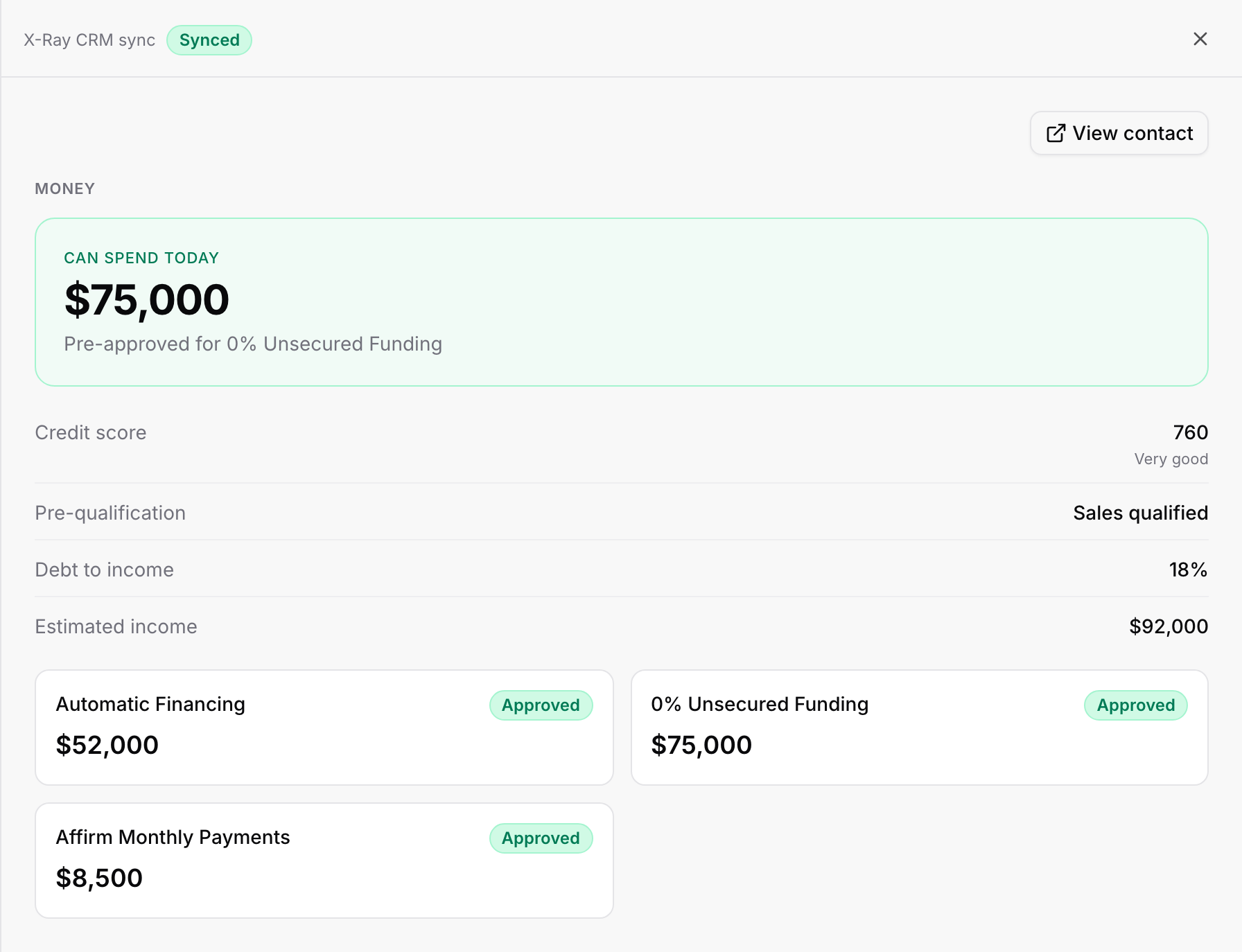
A panel slides in from the right. At the top left is the X-Ray CRM sync status, with a Sync now button when the last sync failed or dropped fields. The body shows the same Money block as the contact's X-Ray Data tab, with credit score, pre-qualification and any financing offers. A View contact button takes you to the person.
For anything that did not complete, the reason is on the Status badge in the list, not in this panel.
Every movement of money in your X-Ray wallet, with what it was, the amount and your balance after it.
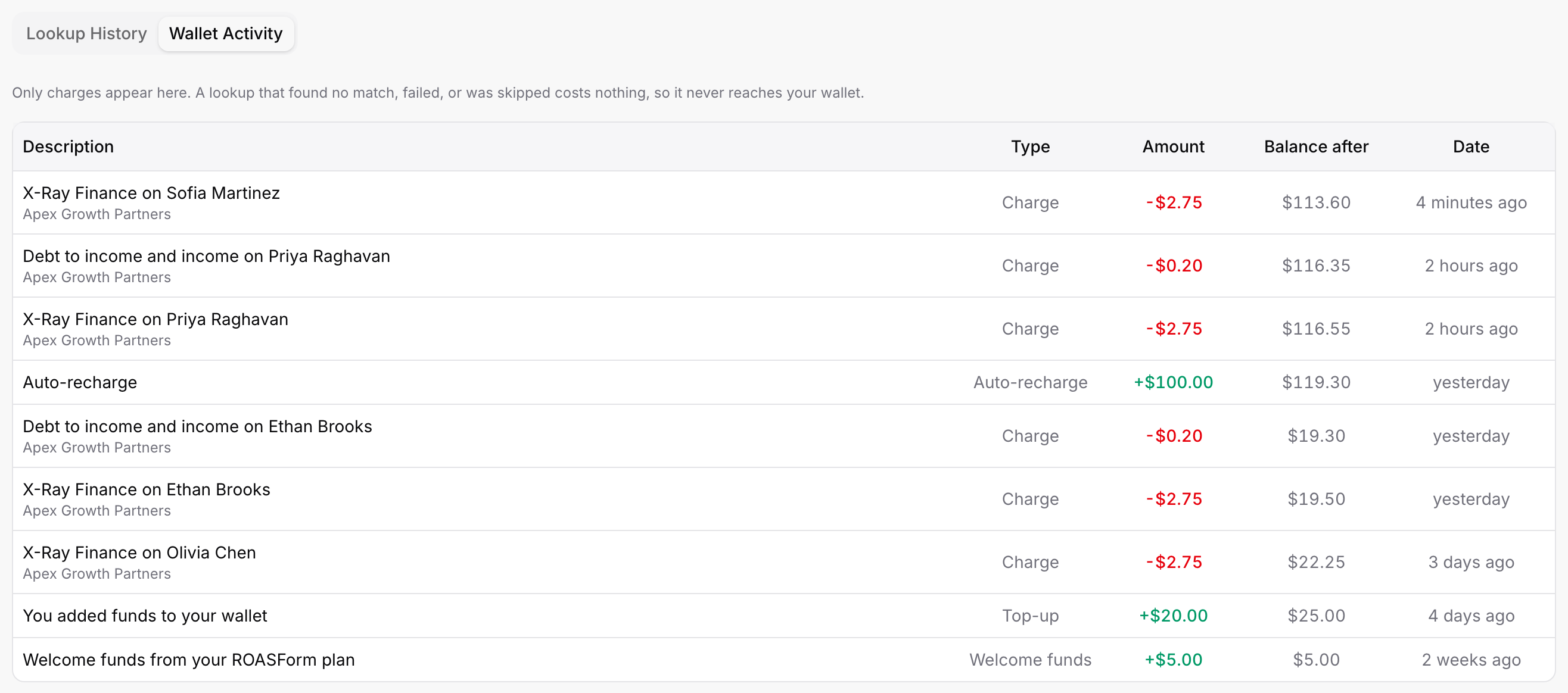
The columns are Description, Type, Amount, Balance after and Date. The entry types are:
Charge: a check you paid for.
Top-up: funds you added yourself.
Auto-recharge: funds added automatically when your balance fell low.
Plan change: your X-Ray plan was switched, for example to new rates.
Gift: credit added by ROASForm support.
Only checks that were charged appear here. A check that found no result, failed or was skipped costs nothing, so it never reaches your wallet. See X-Ray Plans, Wallet, and Top-Ups.
Because Wallet Activity shows the balance after each entry, you can follow the whole line down and see where any number came from.
Lookup History covers X-Ray only. For CRM and pixel delivery attempts, use Integration Logs.
The X-Ray Overview shows the most recent checks as a shortcut. History is the complete, filterable version.
There is no Run again button in History. See Can I Run X-Ray on a Lead by Hand?.

