When a lead shows up in ROASForm but not in your CRM, the answer is almost always sitting in the delivery log already. This article walks the checks in the order that finds it fastest, so you don't reconnect an integration that was working fine.
Work through it top to bottom. Each step rules out a different cause, and the later steps only make sense once the earlier ones have passed.
Open the form's Submissions tab and confirm the submission is there. If it isn't, this isn't a sync problem and nothing in the rest of this article applies. The usual causes are:
The form was still a draft. Submissions on an unpublished form aren't saved.
The test used the builder preview. Preview submissions are deliberately not saved.
The email is on the Blocked List. See Blocking Spam and Unwanted Submissions.
Still on the Submissions tab, look at the sync badge on that submission's row. It tells you what GoHighLevel did with the contact.
Synced — GoHighLevel accepted the contact. The contact exists, so search that sub-account for the email address. By far the most common version of this ticket is someone searching the wrong GoHighLevel location.
Synced with dropped fields — the contact exists, but a custom field you'd mapped has since been deleted in GoHighLevel. Recreate the field there, or remap that question. See Mapping Form Answers to GoHighLevel Custom Fields.
Anything else — go to step 2 and read the error.
Open the form's Integration logs tab, or go to Connect → Integrations → Logs. Find the delivery for that submission and read the error on it.
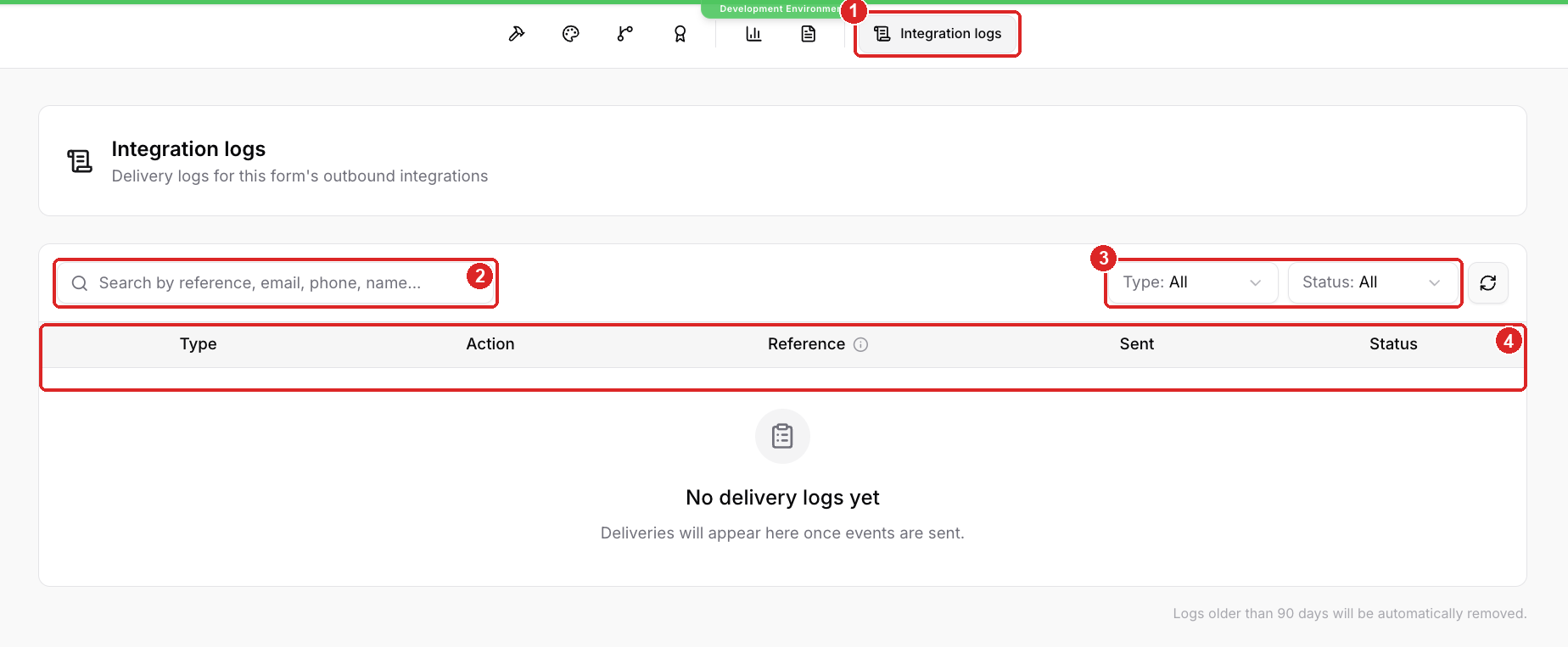
Integration logs — the form's own delivery log, in the top bar
Search — by reference, email, phone, or name, so you can find one lead
Type and Status filters — narrow to failures
Each row shows the type, action, reference, time sent, and status
The error text comes from GoHighLevel, not from us, so it's describing what GoHighLevel refused. That's what tells you whether this is a permissions problem, a field problem, or a dead connection.

Each ROASForm subaccount connects to exactly one GoHighLevel sub-account, called a location. Go to Connect → Integrations and expand the GoHighLevel card — it shows the location name, the Location ID, and when it was connected. Make sure that's the location you've been searching.
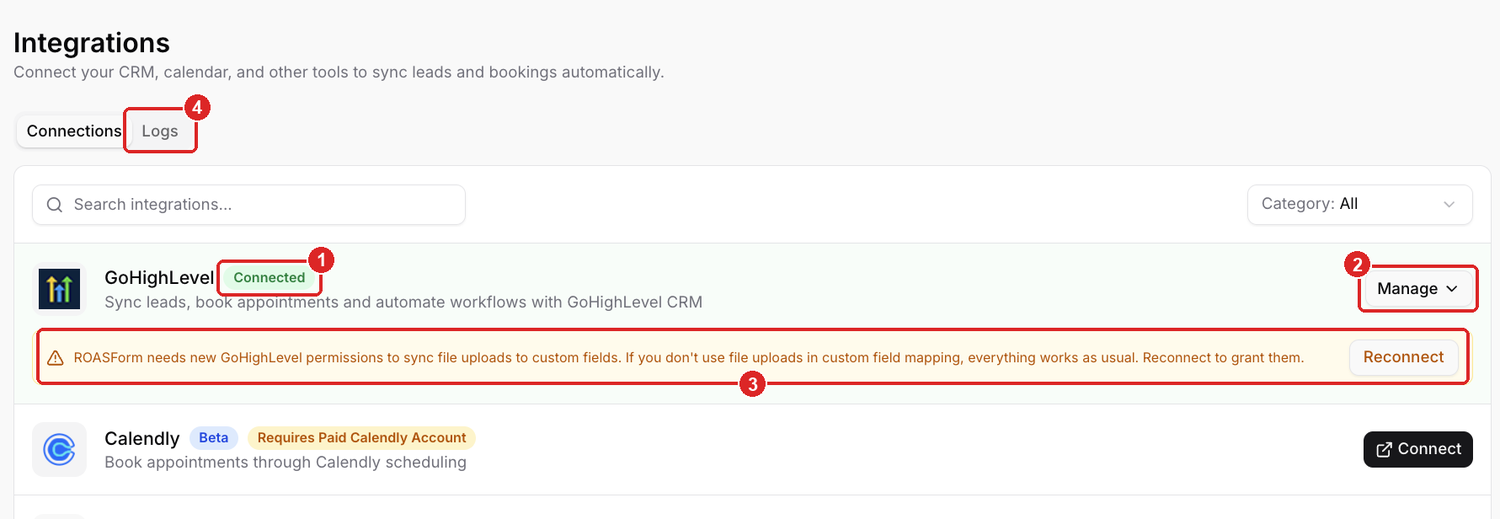
Connected — the green badge means ROASForm currently has access
Manage — expand to see the location name, Location ID, and connection date
The amber permissions banner, explained below
Logs — subaccount-wide delivery logs, across all forms
If you're running several clients, each one needs its own ROASForm subaccount pointed at its own location. Creating additional subaccounts requires the Agency plan. See Subaccounts and the Agency View.
The connection is per subaccount, but syncing is switched on per form. Open the form, go to Form Settings → Integrations, and confirm Integration is set to GoHighLevel. A form created before you connected GoHighLevel won't have it set.
"The contact exists but there's no tag" and "the contact exists but the answers aren't on it" are separate from "the contact wasn't created":
A missing tag is the tag setting on the ending, or in the form's settings — not a failed contact create. See How ROASForm Tags Work with GoHighLevel.
A missing answer is the field mapping. See Mapping Form Answers to GoHighLevel Custom Fields.
In both cases the sync itself worked, so reconnecting won't change anything.
The GoHighLevel card shows an amber banner with a Reconnect button in two situations, and they mean very different things.
"ROASForm needs new GoHighLevel permissions to sync file uploads to custom fields." Everything is still working. Reconnect only if you map File Upload questions to GoHighLevel fields. If you don't, you can ignore this.
"Authentication expired. Please reconnect your GHL account." GoHighLevel has stopped accepting our access — usually because the app was removed there, permissions were reset, or the account changed. Syncing and bookings are paused until you reconnect. Afterwards, leads that arrived in the meantime can be resent using the sync button on their rows.